Performance Reviews
Overview
CodeCortex drafts individual performance reviews from the whole period's engineering work: pull requests, code reviews, Code Review findings, and Jira activity. The manager adds what the data can't see, approves the skill ratings, edits the feedback, and shares the review. Every revision is kept.
Each review includes:
- Engineering skills: Proposed ratings for six skills, measured against the person's job expectations: testability, scalability, readability, maintainability, security, and robustness.
- Key achievements, areas for improvement, and collaboration: Feedback drafted from the work, with the evidence behind it.
- Recommended actions: Next steps with an owner, timeline, and success criteria.
- Metrics: Delivery, code quality, and collaboration metrics compared with the previous period.
Try the Live Demo
See a sample performance review built from sample data.
Set Up a Team
Reviews are created from a team's Reviews tab.
Prerequisites
Step 1: Connect Your Tools
Connect GitHub, GitLab, or Bitbucket, and Jira. If the team uses Code Review, its findings are used as evidence for the skill ratings.
Step 2: Create a Team with a Manager
Create a team. For each member:
- Add their email address. Only members with an email can be reviewed.
- Link their GitHub, GitLab, and Jira accounts, so their work is attributed to them.
- Optionally, add their Job description.
Choose a Team manager. The team manager creates and manages the reviews of every other member.
Who Can See and Manage Reviews
| Role | What they can do |
|---|---|
| Team manager | Create, generate, edit, approve, share, finalize, and reopen reviews for the other team members. Publish a review to Confluence. |
| Tenant admin | Create reviews for anyone except themselves. Set each employee's assigned manager. |
| Employee | View their own review once it is shared. |
Only the assigned manager, the employee, and tenant admins can open a review. Drafts are visible only to the manager and tenant admins. A team manager's own review is created outside their team.
Set Up Review Access and Job Expectations
Proposed skill ratings are measured against the person's job expectations, so set them before you generate a review.
Open any review for the employee (see Create a Review), and select Review setup. Under Job Expectations and Review Access:
- Assigned manager email (tenant admins): The manager who reviews this employee. Select Save review access.
- Review timezone: The IANA timezone, for example
America/New_York, in which the review's start and end dates are calendar days. Select Save timezone. - Job expectations (assigned manager): Provide the job definition in one of these ways, then select Extract expectations:
- Paste the Job definition text.
- Select Upload job document and choose a PDF or DOCX file.
- Enter a Job definition Confluence URL. The page is read with your own linked Atlassian account.
- Check the extracted Role, Job level, and the expectations for each of the six skills. Correct them if needed, then select Confirm job expectations.
Each expectation must come from the job definition. If the role or level is unclear, choose it before you confirm.
Create a Review
Step 1: Start a New Review
Select Teams in the CodeCortex sidebar, open the team, and select the Reviews tab. Each member's past reviews are listed with their Date range, Length, Status, and when they were Generated.
Select New review next to the member.
Step 2: Choose the Period
Choose Last month, Last quarter (the default), or Last 6 months, or set a Start date and End date.
Step 3: Generate the Review
Select Generate. The review opens and is generated as a Draft.
The review is compared with the previous period. For a review of exactly one calendar month or quarter, that is the previous month or quarter. Otherwise, it is the period of the same length just before it.
Add Human Context
Mentoring, talks, and customer escalations rarely show up in a repository. The manager can add them as context for the review.
- Expand Human Context, and select Load manual input.
-
Fill in any of these fields:
Field Example Customer escalations Coordinated incident recovery and documented customer impact. External conferences Presented a technical talk and shared the findings with the team. Internal talks Led an API-design session for two engineering teams. One-pagers or design reviews Authored an architecture proposal with documented trade-offs. Mentoring Supported a new engineer through their first production change. Customer advisory board Translated customer feedback into a prioritized engineering proposal. Other context Business impact, delivery blockers, or work not captured in GitHub or Jira. -
Select Save manual input.
- Select Refresh review to regenerate the review with the new context.
What's in the Review
The screenshots in this section show a sample review from the live demo. The demo shows the review's content. The engineering skill ratings and the approval workflow are described below.
Overview
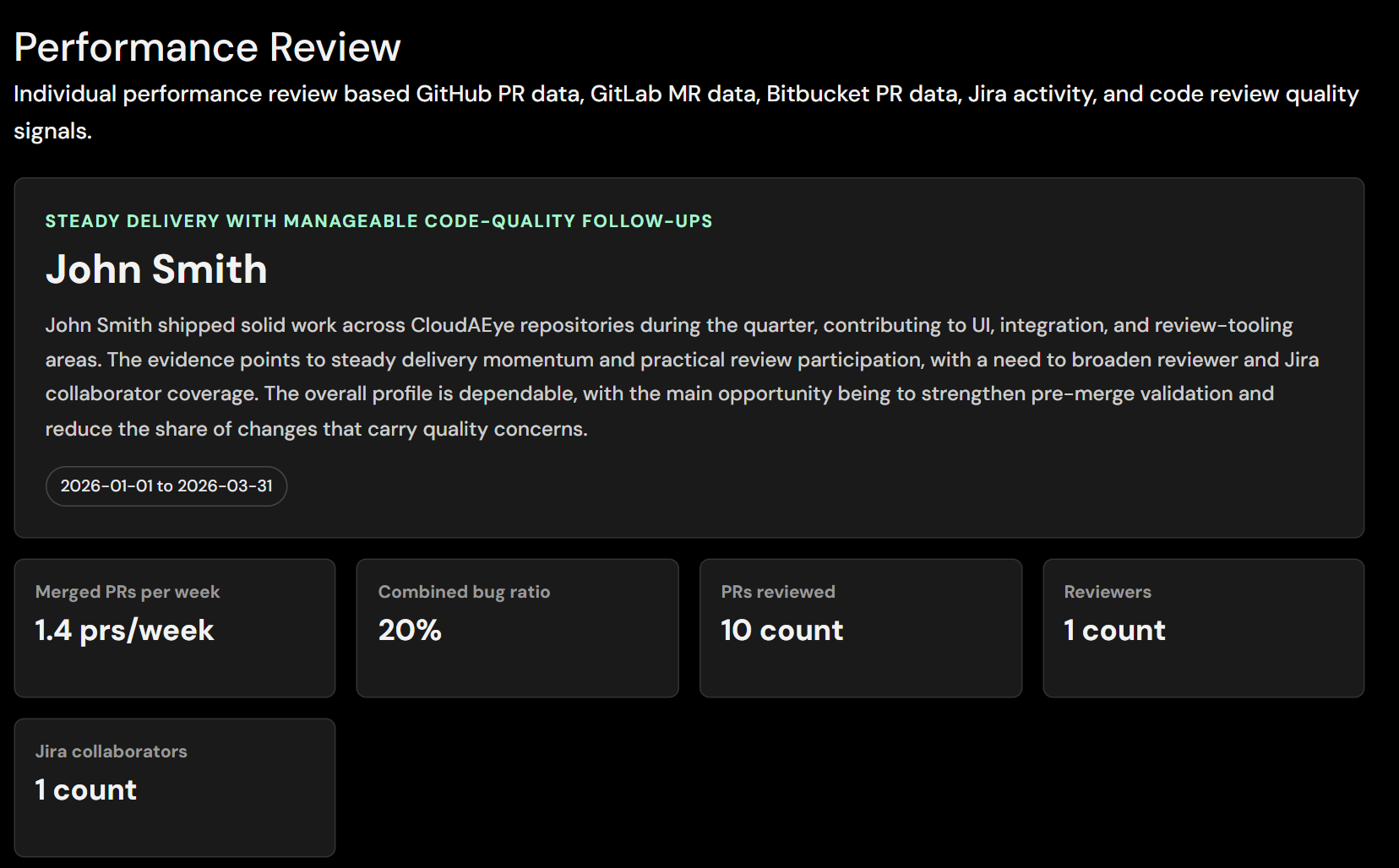
A performance label, a summary of the period, and how the work compares with the job expectations. Key metrics for the period are shown underneath. In this example, the quarter's headline is "Steady delivery with manageable code-quality follow-ups": the engineer merged 1.4 pull requests a week and reviewed 10, with a 20% bug ratio.
If some evidence was missing, a data gaps list says what, so you can weigh the review accordingly.
Metrics
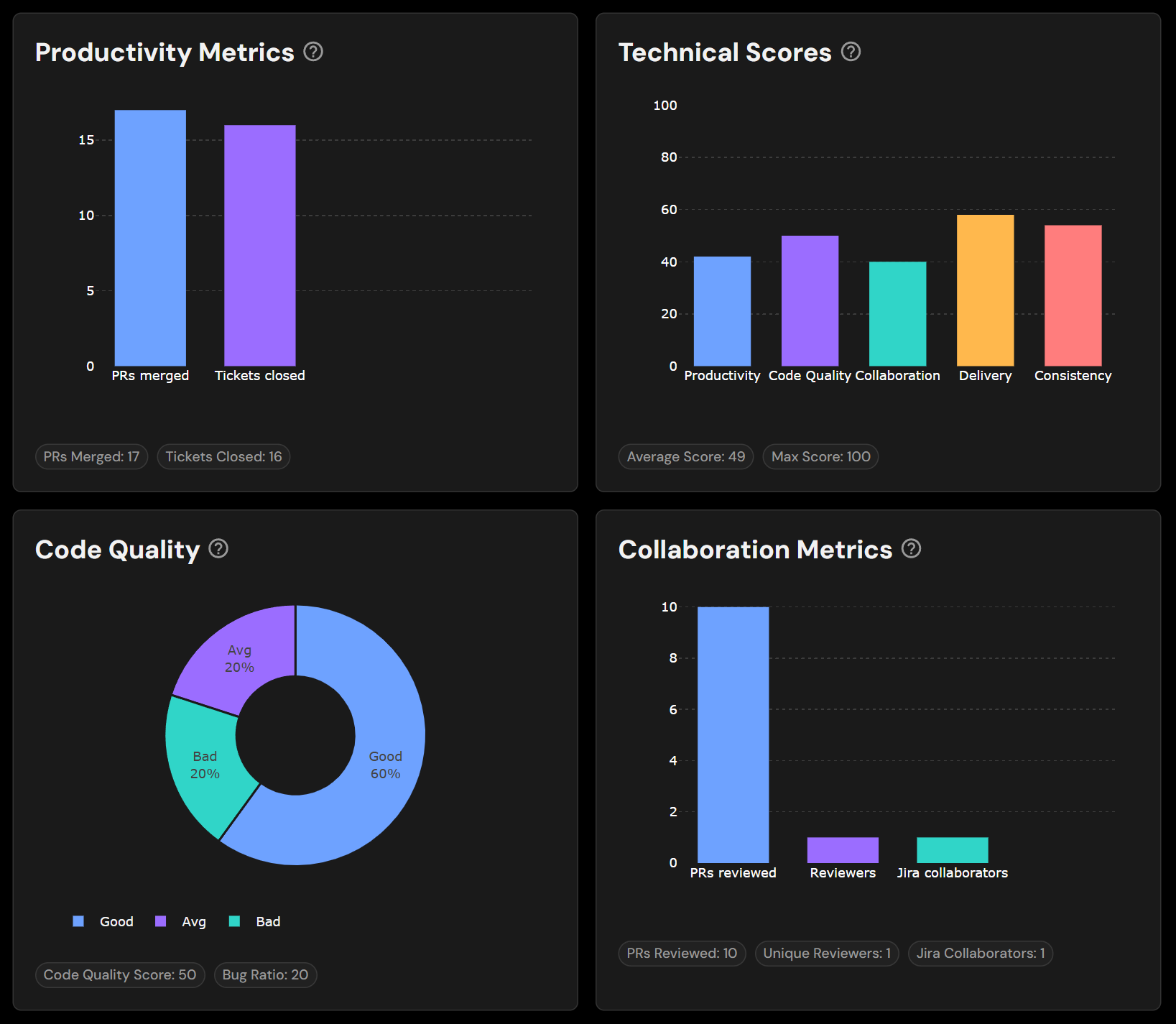
Charts summarize the person's productivity, technical scores, code quality, and collaboration for the period. The Code Quality chart shows the share of the person's pull requests that Code Review rated good, average, or bad. In this example, 60% were good and 20% were bad.
| Metric | Definition | Better when | How to read it |
|---|---|---|---|
| Merged PRs per week | Pull requests merged per week in the period. | Steady, in line with the role | Depends on the work. One large migration and ten small fixes are both valid. Read it with the pull request size metrics. |
| Bug ratio | Percentage of the person's evaluated pull requests with correctness findings or failed checks in Code Review. | Lower | A high ratio points to a coaching topic, such as testing or self-review before opening a pull request. |
| PRs created | Pull requests created in the trailing 90 days, compared with the 90 days before. | Steady | A drop can mean the person moved to design, support, or mentoring work. Check the human context. |
| Median changed files per PR | Over pull requests created in the trailing 90 days. | Lower | Smaller pull requests are easier to review and safer to ship. |
| Median lines changed per PR | Over pull requests created in the trailing 90 days. | Lower | As above. Large medians often go with more review rounds and more findings. |
| PRs reviewed | Other people's pull requests the person reviewed. | Higher, for senior roles | Reviewing is a core part of senior roles, and this credits work that doesn't show up as merged code. |
| Review comments authored | Review comments the person wrote on other people's pull requests. | Higher, with useful comments | Shows how much feedback the person gives, not its quality. |
| Unique reviewers | Distinct people who reviewed the person's pull requests. | Higher | A single reviewer means knowledge is shared with only one person. |
| Jira collaborators | Distinct people who reported, created, or assigned the person's Jira issues. | Higher | Shows how widely the person works across the team. |
| Story points completed | Story points of issues moved to Done in the period. Cancelled issues are excluded. | In line with commitments | Compare with what was planned for the person, not with other people. Teams estimate differently. |
| Jira bugs worked on | Bug issues the person acted on while assigned to them. | Context-dependent | Describes work taken on, not bugs the person introduced. A high count can mean they carried the team's support load. |
Each metric shows its change from the previous period, or Not assessed when there is no evidence.
Metrics describe the period's work, not the person's value. Never compare engineers by these numbers alone: roles, projects, and how the team splits work differ. Use them as evidence for the conversation, alongside the human context the manager adds.
Code Quality
How many of the person's pull requests were evaluated by Code Review, how many had findings, and the findings by category and severity.
Engineering Skills
A radar chart and a rating from 0 to 100 for each of the six skills, with the rationale and evidence behind it:
| Rating | Meaning, relative to the job level |
|---|---|
| 90–100 | Exceptional |
| 80–89 | Exceeds expectations |
| 60–79 | Meets expectations |
| 40–59 | Partially meets expectations |
| 0–39 | Substantially below expectations |
A skill shows Not assessed when the job expectations don't cover it, or there is no relevant work or context to rate it on. There is no single overall score.
Feedback and Recommended Actions
- Key Achievements, Areas for Improvement, and Collaboration, each with a summary and items.
- Recommended Actions, each with a priority, an owner, a timeline, success criteria, and progress: proposed, accepted, in progress, or completed.
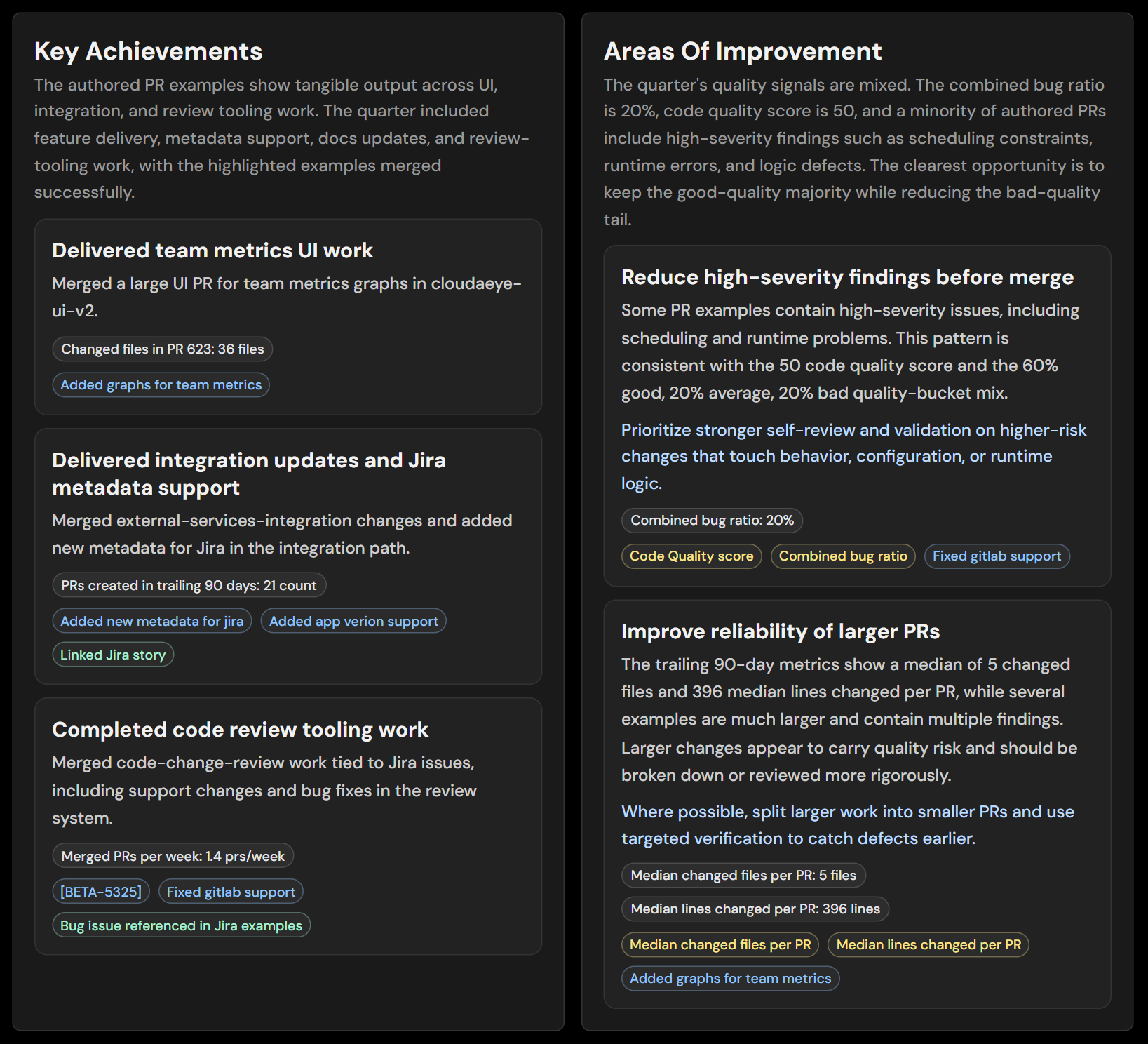
Every item is grounded in the work. The chips under an item show the metrics it is based on and link to the pull requests and Jira issues behind it. In this example, a key achievement is delivering the team metrics UI, backed by the pull request that added it. An area for improvement is reducing high-severity findings before merge, with the recommendation to strengthen self-review on higher-risk changes.
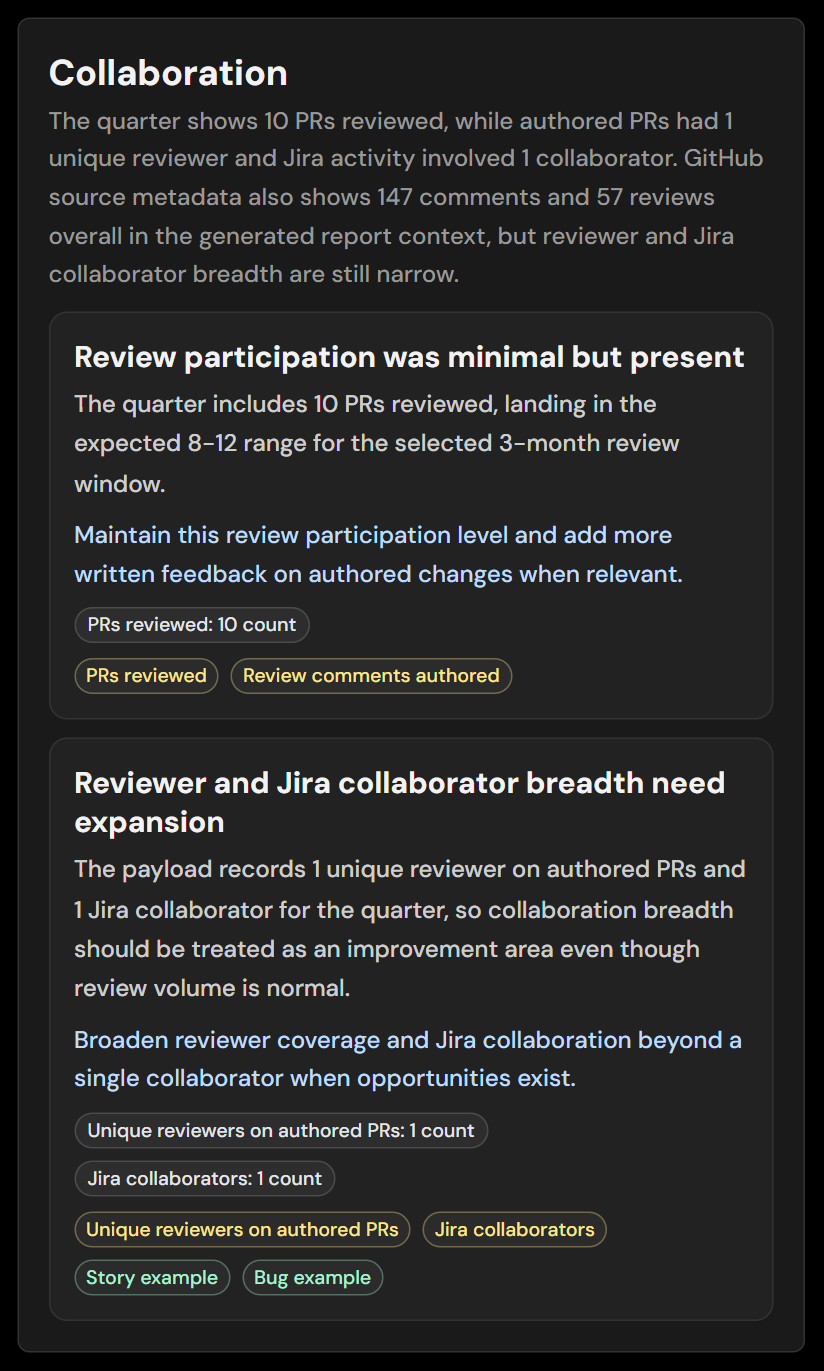
Collaboration covers how the person works with others: the pull requests they reviewed, who reviewed their work, and who they worked with in Jira. Here, review participation is in the expected range, but the engineer worked with only one reviewer and one Jira collaborator. The review recommends broadening both.
The manager edits these sections before sharing the review. See Approve, Share, and Finalize.
Approve, Share, and Finalize
A review moves through three states:
| State | Meaning |
|---|---|
| Draft | Visible only to the manager and tenant admins. Edit and approve it here. |
| Shared | Shared with the employee. |
| Finalized | The final record. It can't be edited or refreshed until it is reopened. |
Step 1: Edit the Feedback
Edit the feedback sections and recommended actions, then select Save feedback.
Step 2: Approve the Skill Ratings
Enter an approval score from 0 to 100 for each of the six skills, then select Approve skill ratings. The proposed scores are a starting point; the approved scores are the manager's.
Step 3: Share the Review
Select Share review. Ratings must be approved first.
Step 4: Finalize the Review
Select Finalize review. To change a finalized review, select Reopen review. It returns to Draft, and the skill ratings must be approved again.
Revision History and Regenerated Proposals
- Select Revision history to see every revision, who made it, and when.
- If a review is regenerated after you edited it, the new version arrives as a proposal. Select Accept new proposal to use it. Sections you edited are kept, and the skill ratings must be approved again.
- If the human context, job expectations, or timezone change after a review is generated, a notice says the review is a snapshot. The manager decides whether to refresh it.
Use the Review in the Conversation
CodeCortex drafts the review from evidence. The manager owns the judgment and the conversation.
Before the Review Meeting (Manager)
- Generate the review early, a week or two before the meeting, so there is time to add context.
- Add human context for work the tools can't see: mentoring, talks, design reviews, incidents, and customer work.
- Check the evidence. Open the pull requests and issues behind each key achievement and area for improvement, and remove anything that's wrong or unfair.
- Set your ratings. Treat the proposed skill scores as a starting point. Adjust them where you know more than the data, then approve them.
- Edit the feedback in your own words, and agree on two or three Recommended Actions.
In the Meeting
- Start with Key Achievements, using the linked pull requests and issues as specific examples.
- Walk through the Engineering Skills radar, and explain any rating you changed from the proposal.
- Discuss Areas for Improvement as growth goals, with evidence, not as a verdict.
- Agree on Recommended Actions: confirm each one's owner, timeline, and success criteria.
- Ask what's missing. If the employee points to work the review doesn't cover, add it as human context and refresh the review before you finalize it.
After the Meeting
- Share the review so the employee can read it, then Finalize it once you both agree.
- Update each recommended action's Progress during the next period, and use it to start the next review.
Customize the Review
| What you can change | How |
|---|---|
| The period | Choose Last month, Last quarter, Last 6 months, or any range of 7 to 366 days. |
| What the person is measured against | Set the role, level, and expectations for each skill in Job Expectations and Review Access. |
| Work the data can't see | Add Human Context, then refresh the review. |
| The ratings | Enter your own approval score for each skill. |
| The feedback | Edit Key Achievements, Areas for Improvement, Collaboration, and Recommended Actions. |
| Who reviews whom | Set the Team manager on the team, or the Assigned manager email for one employee. |
| Calendar days | Set the Review timezone. |
| The evidence | Link each member's GitHub, GitLab, and Jira accounts on the team, and use Code Review for code quality evidence. |
Publish to Confluence
The assigned manager can publish a shared or finalized review to Confluence as an editable copy.
- Under Confluence Copy, enter the Confluence space key and the Parent page ID.
- Select Publish editable copy.
The page is private, titled Performance Review - {email} - {start} to {end}, and includes a radar chart of the approved scores. Both the manager and the employee must have linked Jira (Atlassian) accounts on the team.
The Confluence page is an independent copy of one revision. Publishing again with Update Confluence copy updates the same page. Edits made in Confluence stay in Confluence and are not copied back.
Troubleshooting
| Problem | What to do |
|---|---|
| New review is disabled. | Hover over it to see why. For example, the team has no manager yet, or only the team manager can create reviews. |
| No confirmed job expectations are available for this employee. | Set up the job expectations. See Set Up Review Access and Job Expectations. |
| A skill shows Not assessed. | Add an expectation for the skill, or add human context that covers it, then refresh the review. |
| Share review is disabled. | Approve the skill ratings, and save or discard unsaved changes. |
| This review is finalized. | Select Reopen review to make changes. |
| {range} has not ended yet in the review timezone | Wait until the last day of the period is over, or choose an earlier end date. |