Code Review LLM Settings
Overview
CloudAEye supports all leading frontier coding models from major providers. Each model has been thoroughly tested in-house, and this page shares our recommendations based on those results.
Prerequisites
Setup Code Review
Setup Code Review by following the Getting Started guide.
Supported Models for Code Review
| OpenAI | Anthropic | AWS Bedrock | GCP Vertext | Azure |
|---|---|---|---|---|
| gpt-6.1-sol | claude-opus-5-5 * | anthropic.claude-opus-5-5 * | gemini-3.1-pro-preview | gpt-6.1-sol |
| gpt-5.6-terra * | claude-sonnet-5-5 | anthropic.claude-sonnet-5-5 | gemini-3.8-flash | gpt-5.6-terra * |
| gpt-6-luna | claude-haiku-5-5 | anthropic.claude-haiku-5-5 | gemini-3.5-flash-lite | gpt-6-luna |
| openai.gpt-6.1-sol | claude-opus-5-5 * | |||
| openai.gpt-5.6-terra * | claude-sonnet-5-5 | |||
| openai.gpt-6-luna | claude-haiku-5-5 | |||
| DeepSeek-V4.1-Flash |
NOTE:
- Default Model: gpt-6.1-sol. We selected this model based on internal testing and price/performance data.
- We recommend using GPT models from OpenAI or Claude models from Anthropic.
- (*) - Available for customers with
Enterpriseplan
Choosing a Model for Code Review
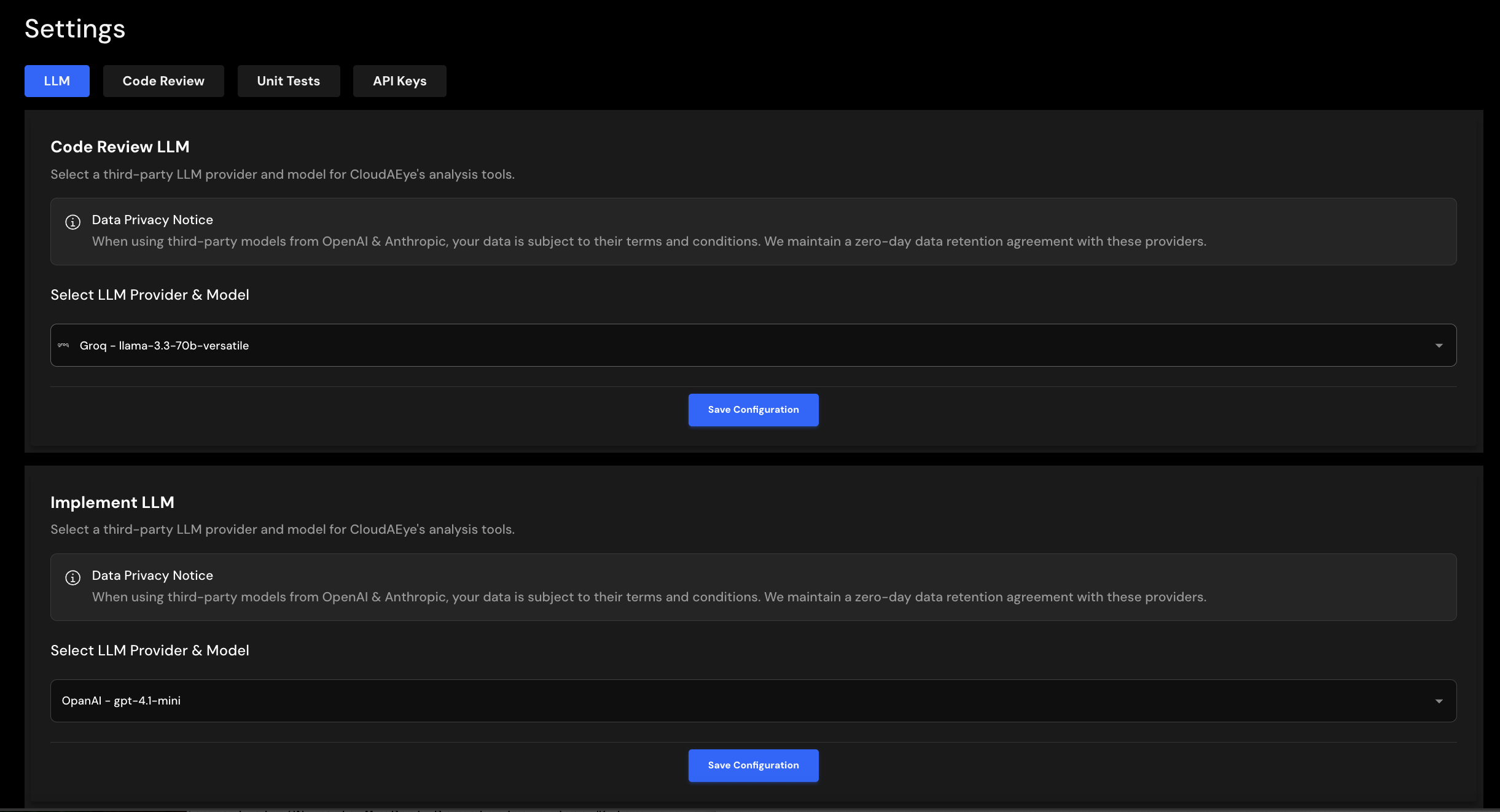
To switch models, choose your preferred option from the dropdown menu, then click the Save Configuration button.
Use Your Own LLM API Key
CloudAEye supports using your own Large Language Model (LLM) API key, giving you greater control over model selection, security, and usage.
This option is particularly useful for customers with security or compliance requirements who prefer to manage their own LLM credentials and API usage.
For Free plan users, CloudAEye does not guarantee access to premium LLM models, as model availability may vary based on cost considerations. By providing your own LLM API key, you can use your preferred supported model without relying on CloudAEye's default model selection.
Benefits include:
- Greater control: Choose your preferred supported LLM model.
- Security and compliance: Manage your own API credentials and LLM access.
- Consistent model access: Use your preferred model regardless of CloudAEye's default model selection for your plan.
Note that LLM API usage through your own key is subject to the provider's pricing, usage limits, and terms. You are responsible for any charges incurred through your LLM provider.
Configure Your Own LLM API Key
To configure your own LLM API key in CloudAEye, follow these steps:
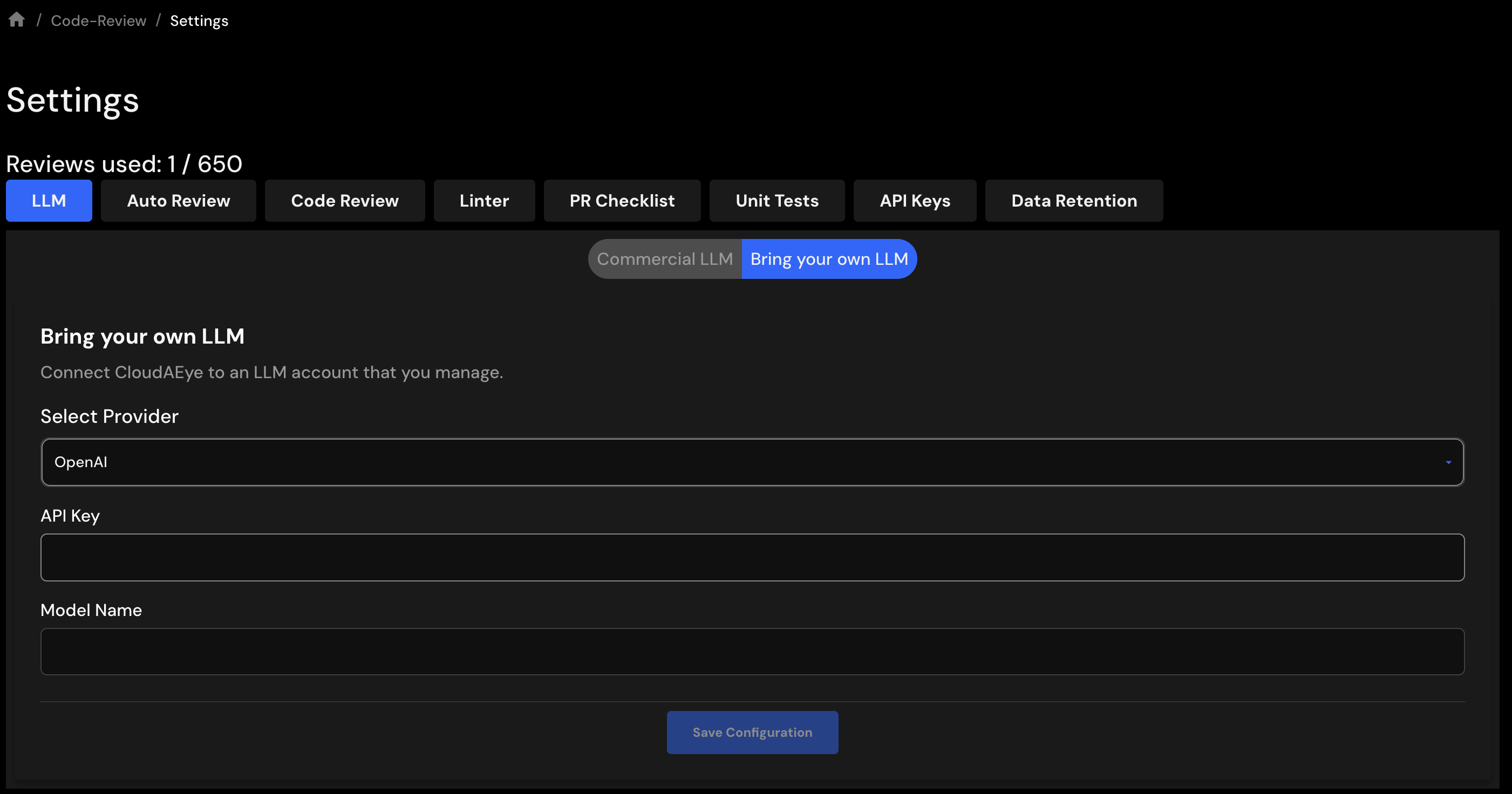
- Navigate to Home > Code Review > Open Dashboard > Settings > Bring Your Own LLM.
- Select the LLM provider you want to configure.
- Enter your API key for the selected provider.
- Enter the name of the LLM model you want to use.
- Click Save Configuration to save your settings.
Once saved, CloudAEye can use your configured LLM provider and model according to your account settings.
Note: Ensure that your API key is valid and that your provider account has access to the selected model.
References
- Claude API overview
- OpenAI API Platform