Configure Code Review - Bitbucket
Overview
This guide describes how to set up the Code Review solution for Bitbucket.
It covers the following steps:
- Connect Bitbucket
- Add Bitbucket Repositories
At the end of this tutorial, you will be able to get started with Code Review solution for your application(s).
Prerequisites
Setup Code Review
After you get access to CloudAEye SaaS, do the following steps:
Step 2: Connect Bitbucket
In the Code Review setup flow, choose Bitbucket. You will be asked to connect your bitbucket account.
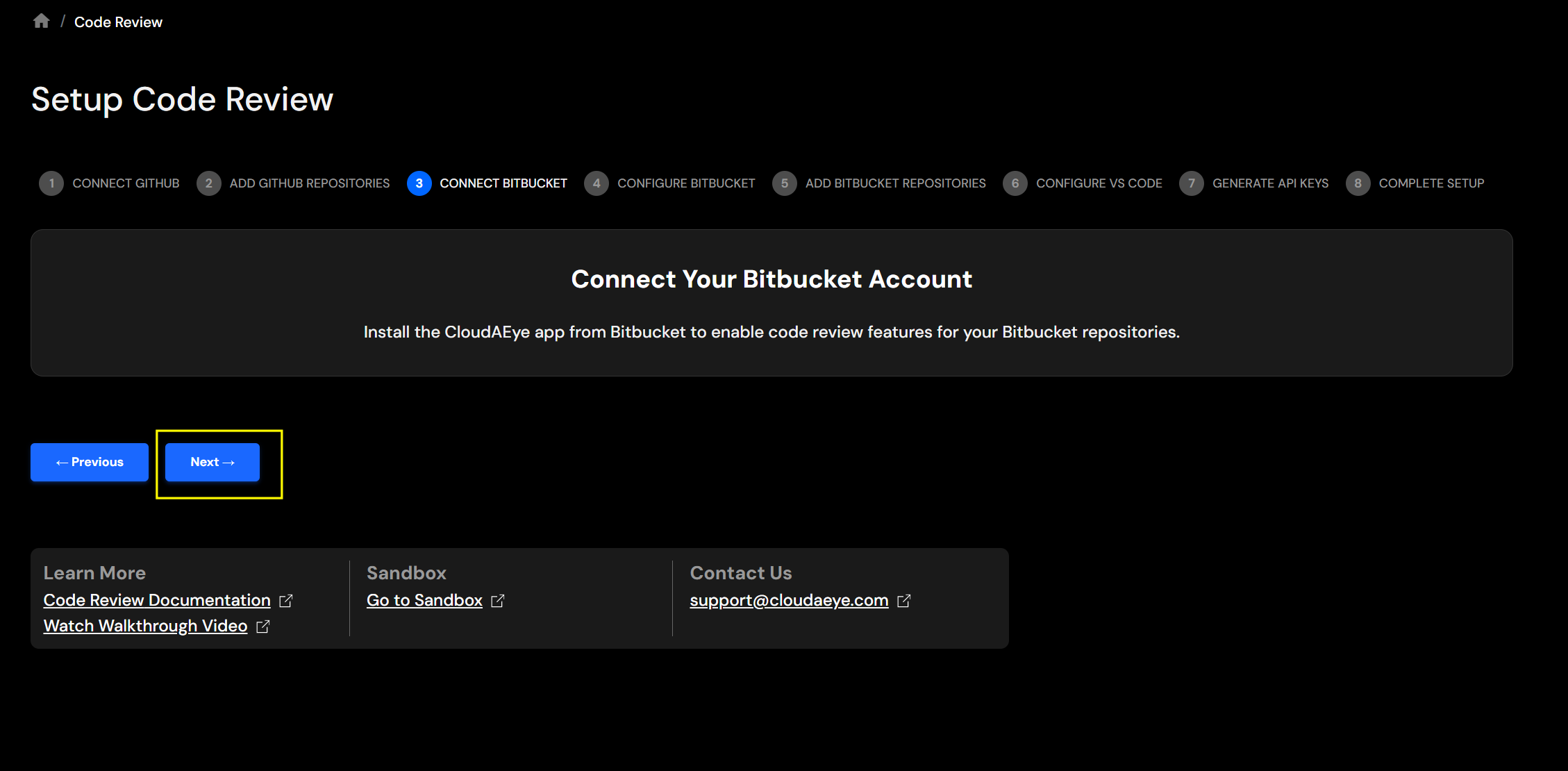
Install CloudAEye App
In the next screen, you will install the CloudAEye app.
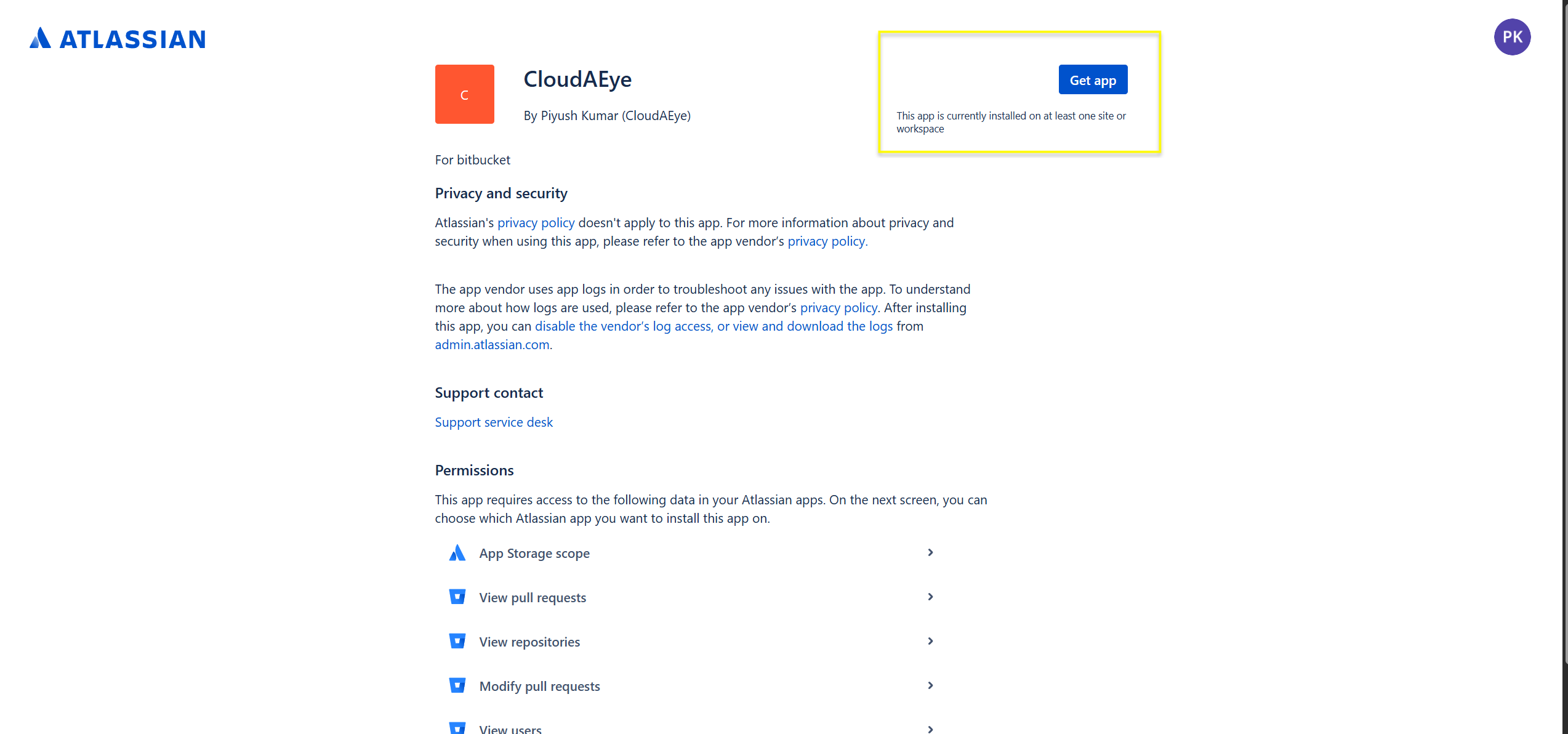
Click on Get App button to install the app.
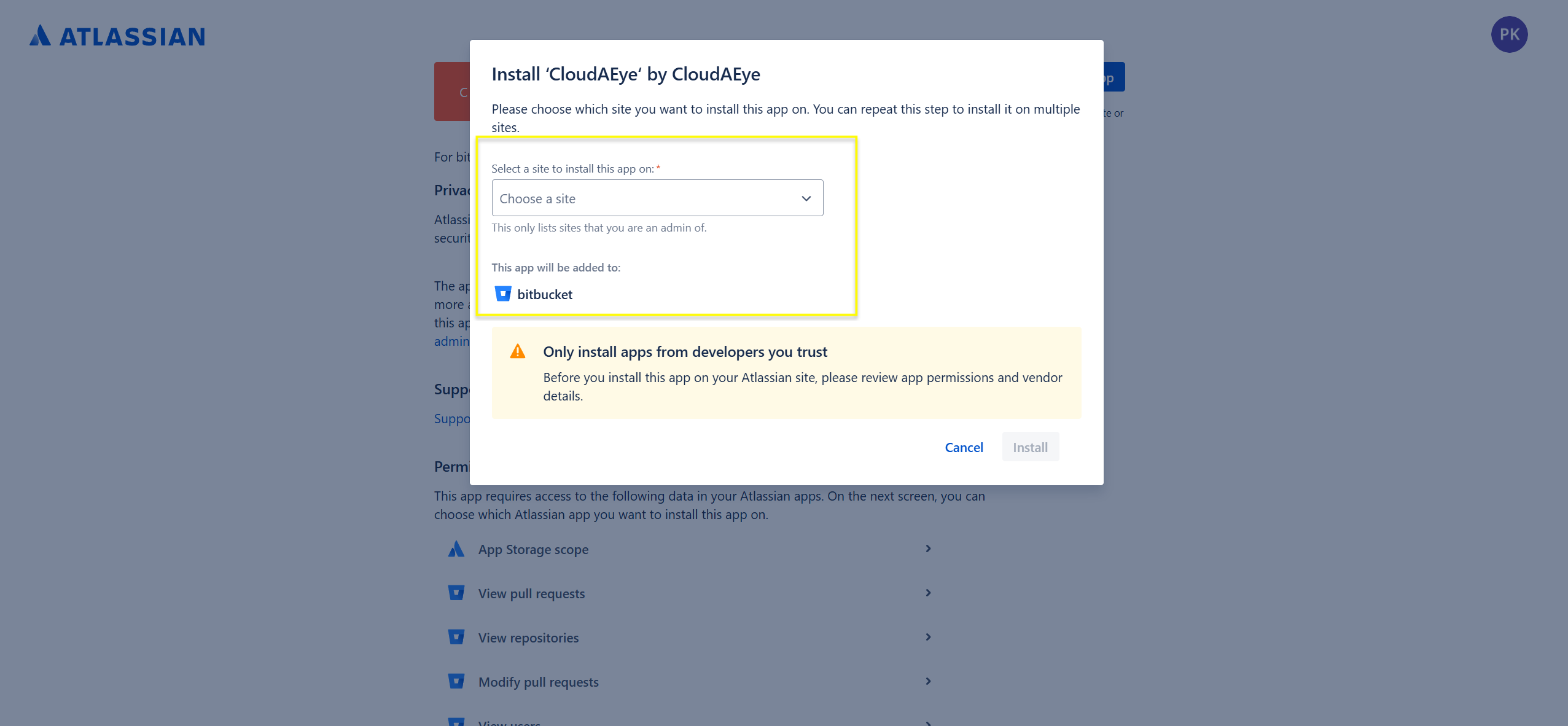
Site
Atlassian will prompt you to choose a site. Select from the drop-down and click on Install.
Workspace
In the next screen, enter the name of your workspace to check connectivity with Bitbucket.
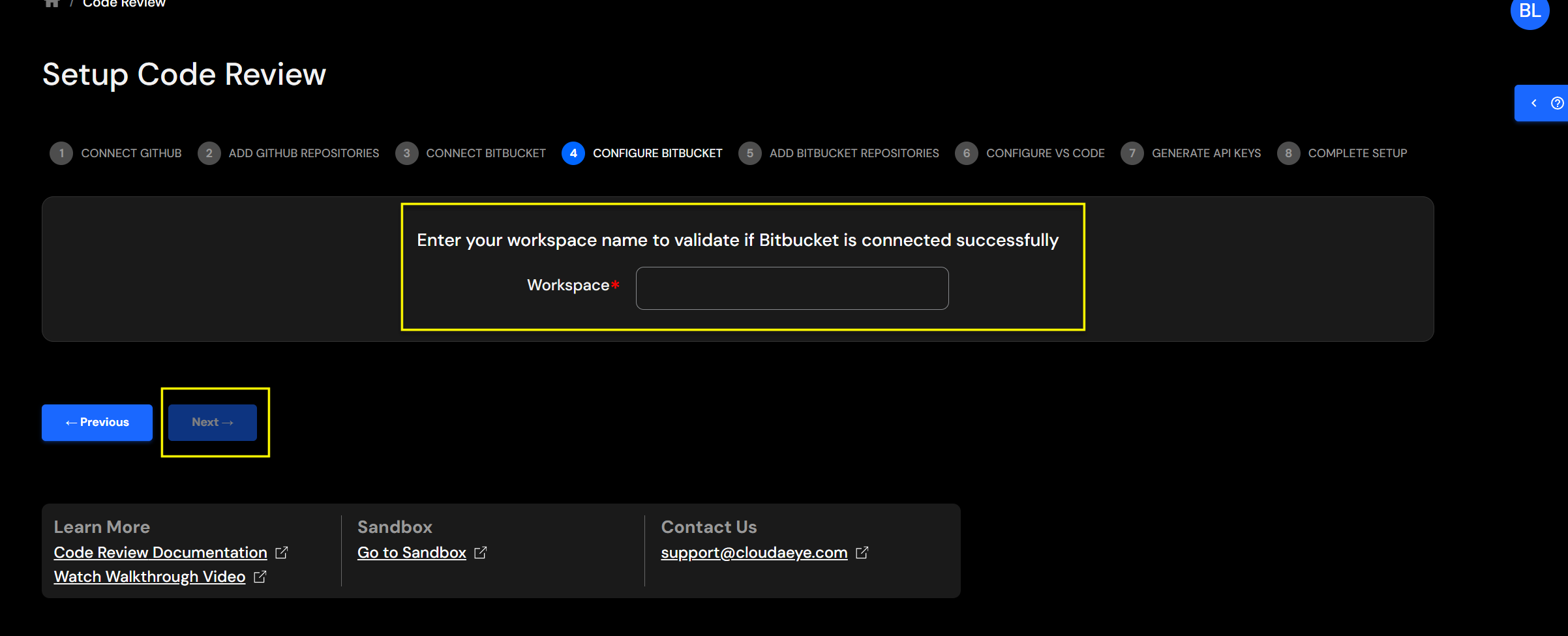
Click Next button. You will see a "successful" message in the top right corner and repository list will appear.
Warning: Atlassian may take up to 2–3 minutes to return the ID after the Bitbucket app is installed. Please be patient during this step.
Step 3: Connect your GitHub Repositories
Add Bitbucket Repositories
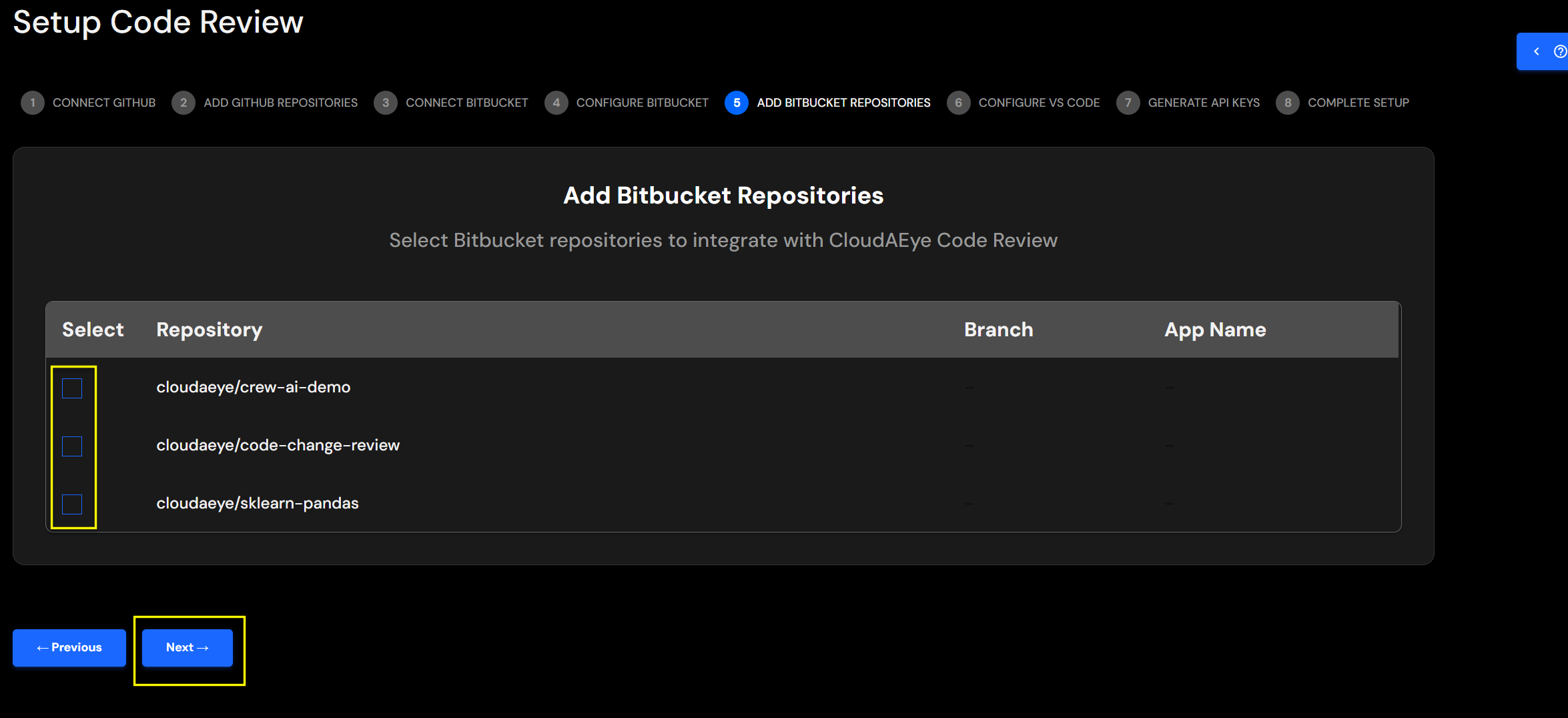
Select the repositories you would like to monitor for Code Review.
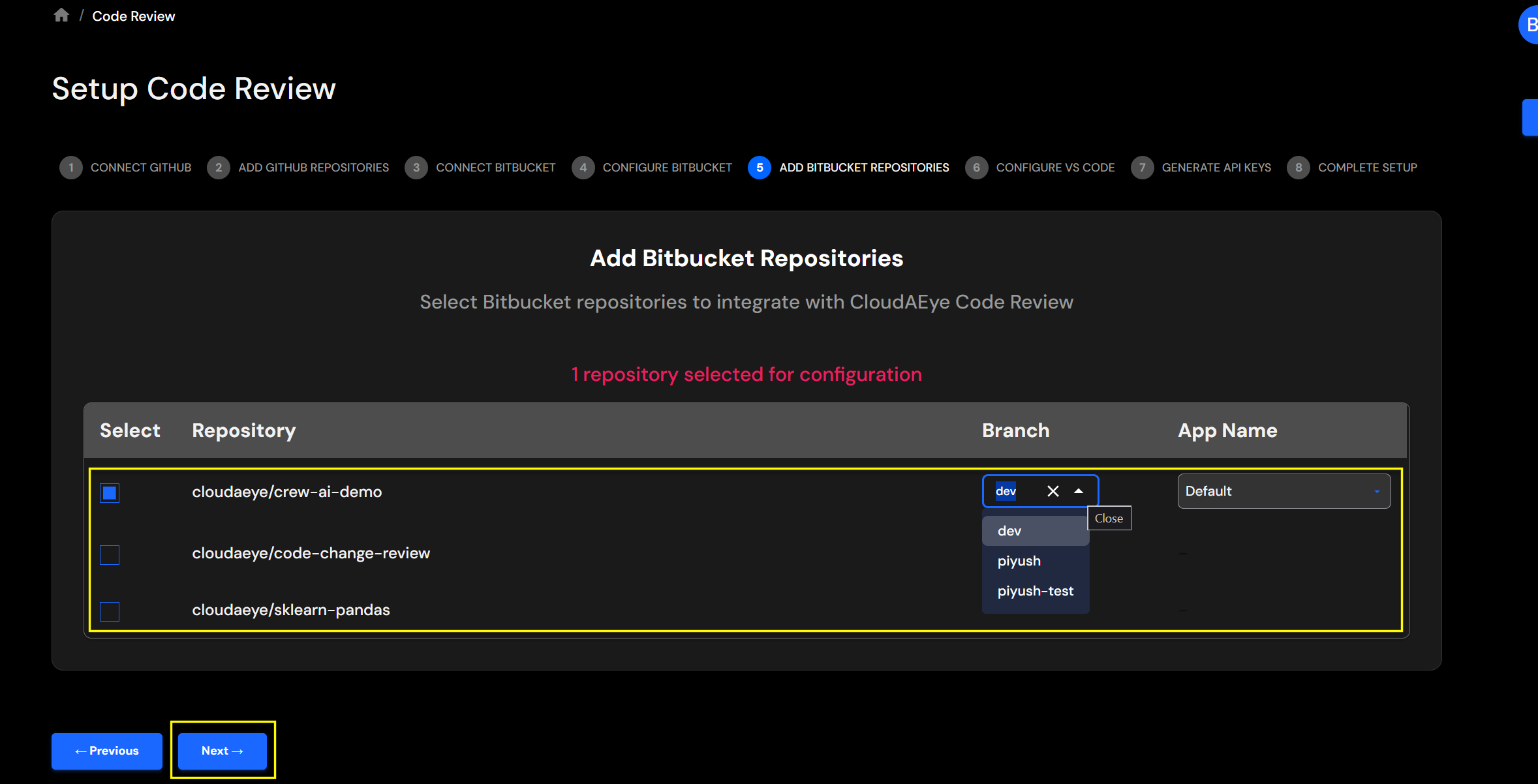
Map Repository Details
Add the details for all selected repositories.
- ** Repository Name: ** Name of the repository that you selected.
- ** Branch: ** From the drop-down menu, select the code branch. This branch will be used for codebase context.
- ** App Name: ** Provide your application's name. You may select an existing application name from the drop down or add a new application name. For example, SockShop.
Congratulations! You have successfully configured `Code Review' for Bitbucket.
Edit Bitbucket Repo Integration
From the left navigation, open the Integrations page.
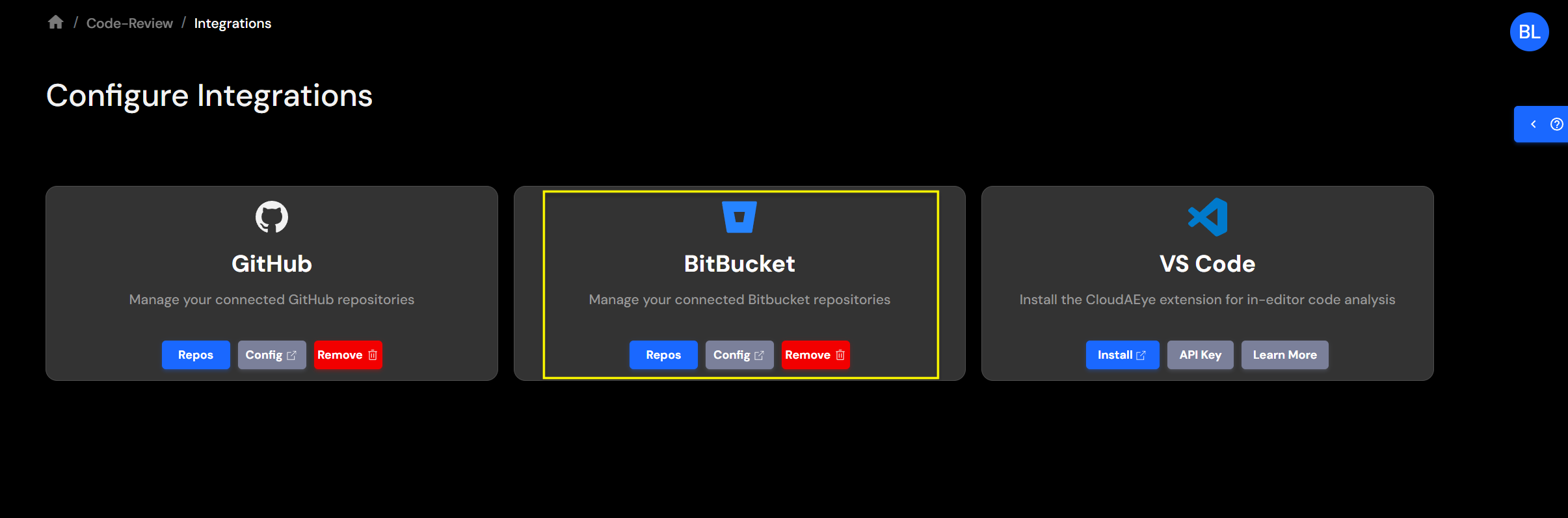
Select Repos button under Bitbucket to view your list of Bitbucket repositories.
For each repository, you may modify the branch, configure automated PR reviews, define the app name, specify tech stack context URLs, and manage linter and unit test settings.
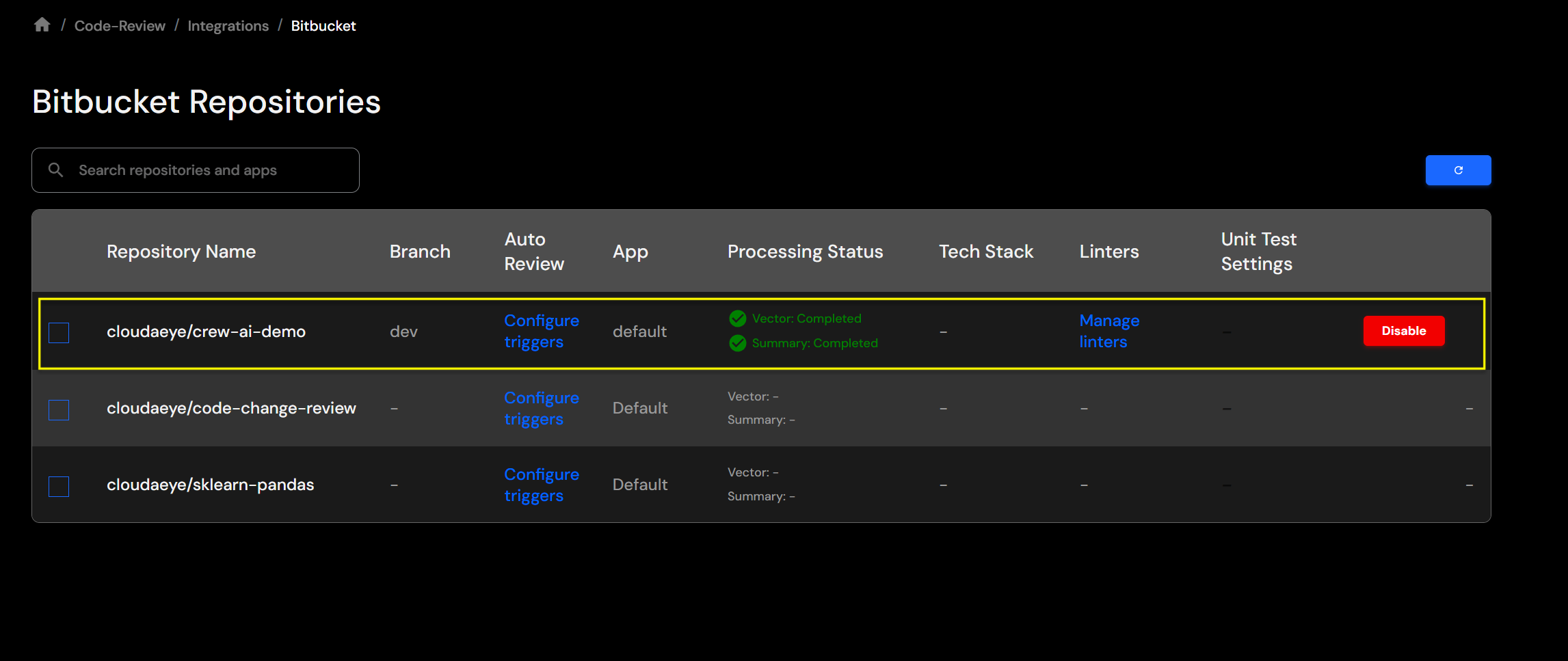
When you're finished, click Save to apply your changes.
Remove Bitbucket Repo Integration
From the left navigation, open the Integrations page.
Select Repos button under Bitbucket to view your list of Bitbucket repositories.
When you click on the Disable button for a specific repository, you will see a confirmation page like the following:
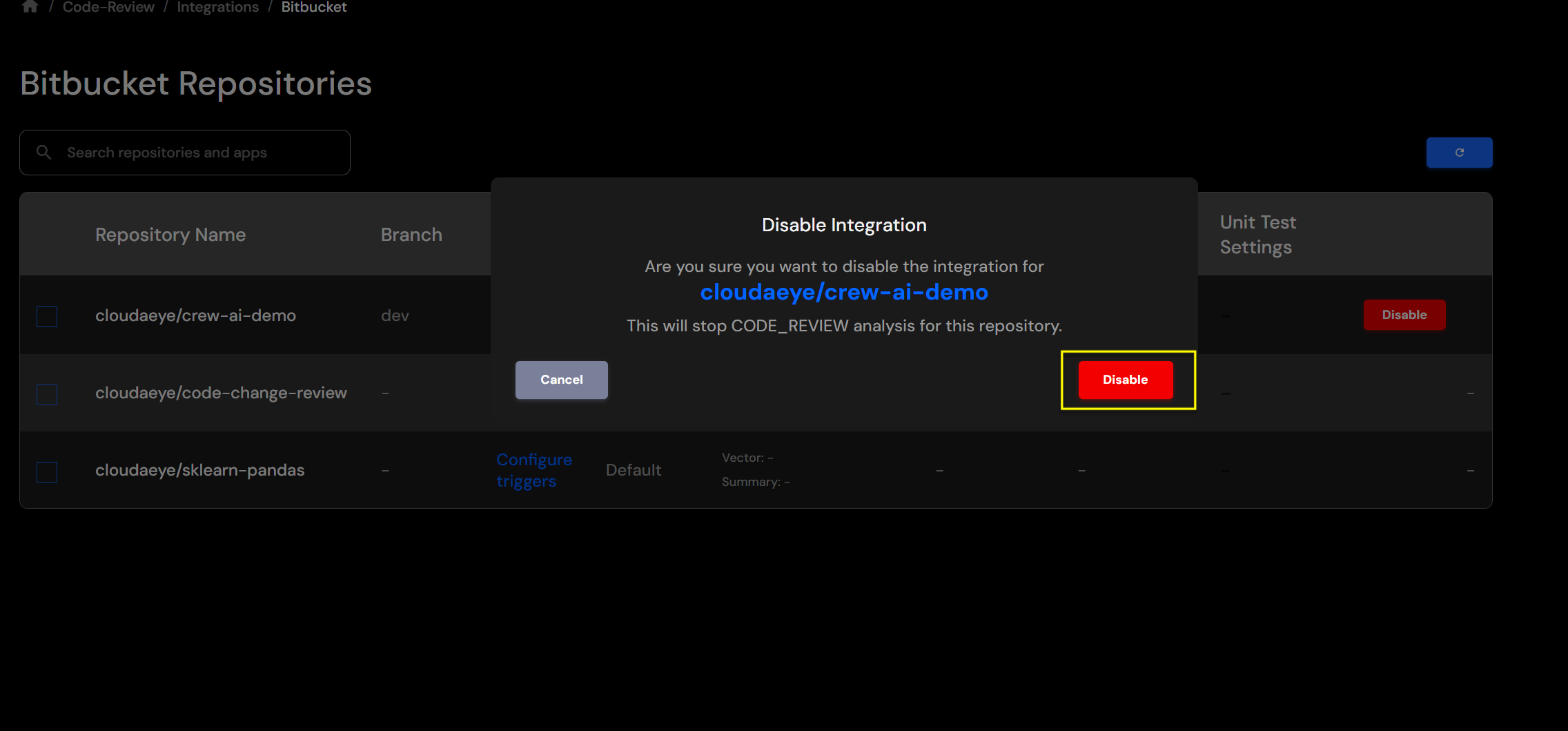
Click on the Disable button again to confirm.
Remove the App
You may go to Bitbucket Installed Apps page of your organization.
The URL is https://bitbucket.org/cloudaeye/workspace/settings/addon-management
Replace cloudaeye with your site in the above URL.
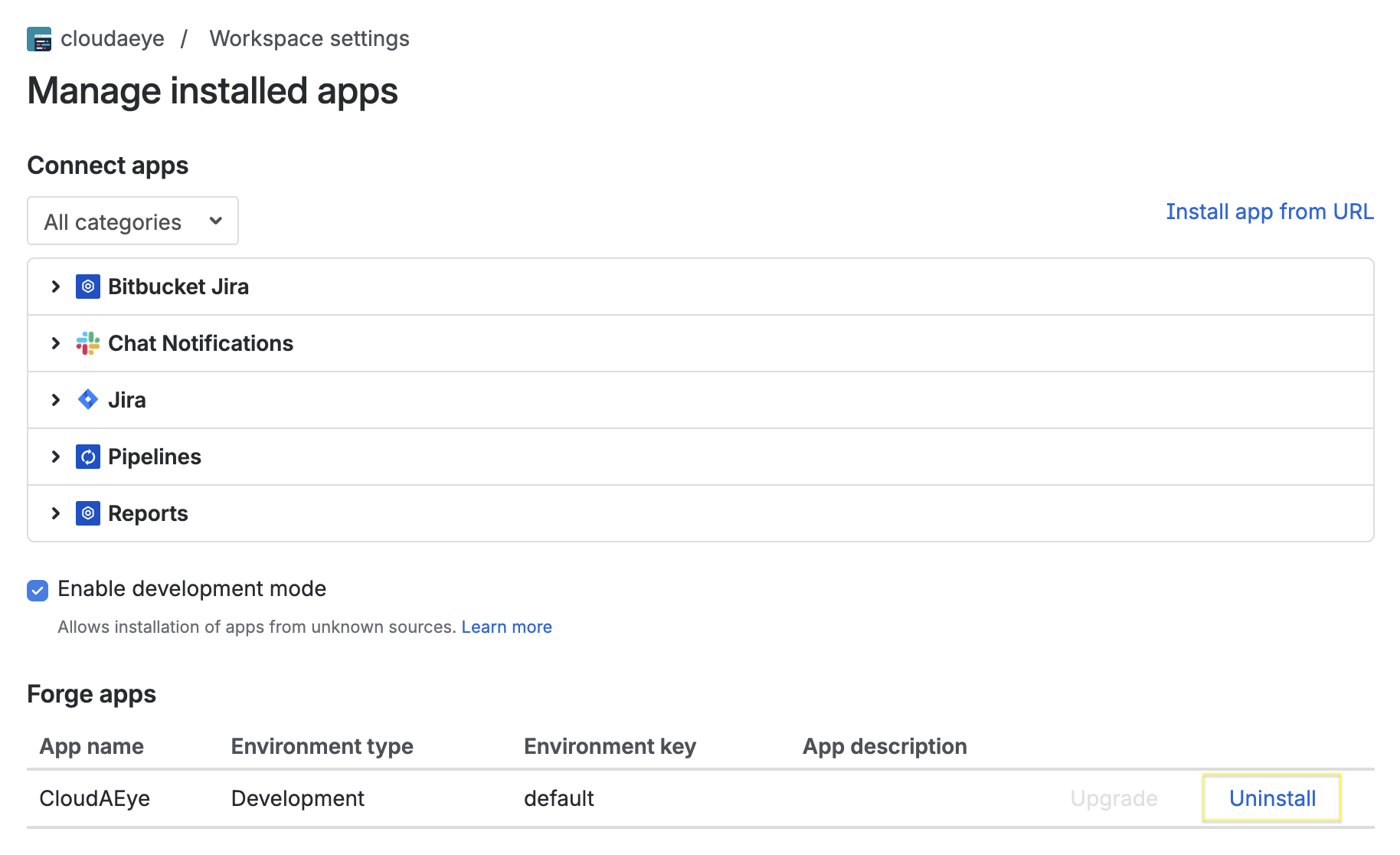
Under "Forge apps" section, you will see the CloudAEye app. Click on Uninstall to remove the app.
Remove the Integration
From the left navigation, open the Integrations page.
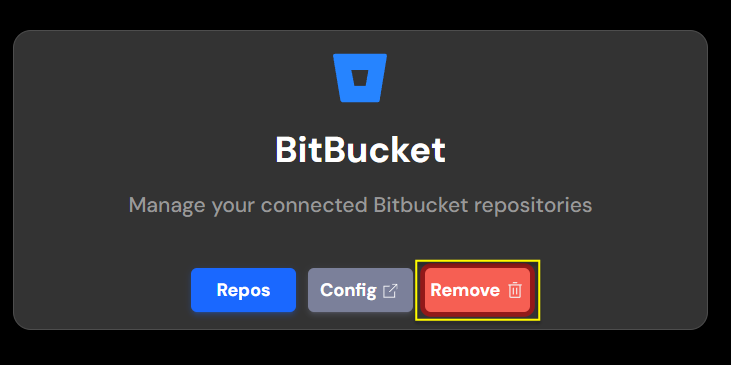
Click on Remove (trash) button to remove Bitbucket integration.
You will see a confirmation page.
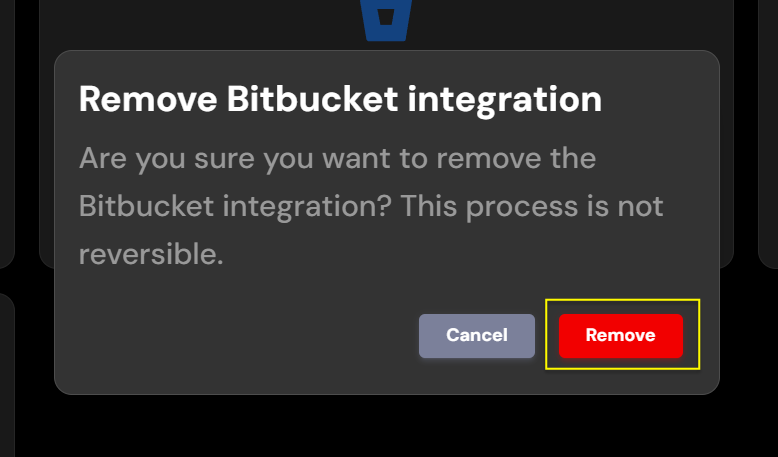
Click on Remove button to confirm.
For any further queries or additional information, please explore our Support Page or contact our team directly at support@cloudaeye.com.