Code Review - Custom Rules
This guide explains how CloudAEye helps you create and apply custom rules to enforce your organization’s best practices across all pull requests, ensuring consistency and compliance within your team.
Overview
You can add your own code review standards by describing them in plain English. CloudAEye will handle the rest. The system converts your description into an active rule that runs on every pull request review.
Prerequisites
Step 1: Register
Sign up with CloudAEye SaaS.
Step 2: Setup Code Review
Setup Code Review by following the Getting Started guide.
How It Works?
1) Describe Your Rule
Write your rule in natural language. For example, "Check that all API endpoints validate user permissions before processing requests".
2) Set the Scope
Set the scope of the rule. You have the following options:
- Apply to specific repositories
- Target file patterns (e.g., .py, src/api/)
- Limit to subdirectories (e.g., backend/controllers/)
- Or apply to everything
3) Activate
Enable the rule. Your rule is now live and checking every PR.
Create a Rule
From Code Review Home, select Rules from the left navigation.
You will see a page that shows all the rules you have created.
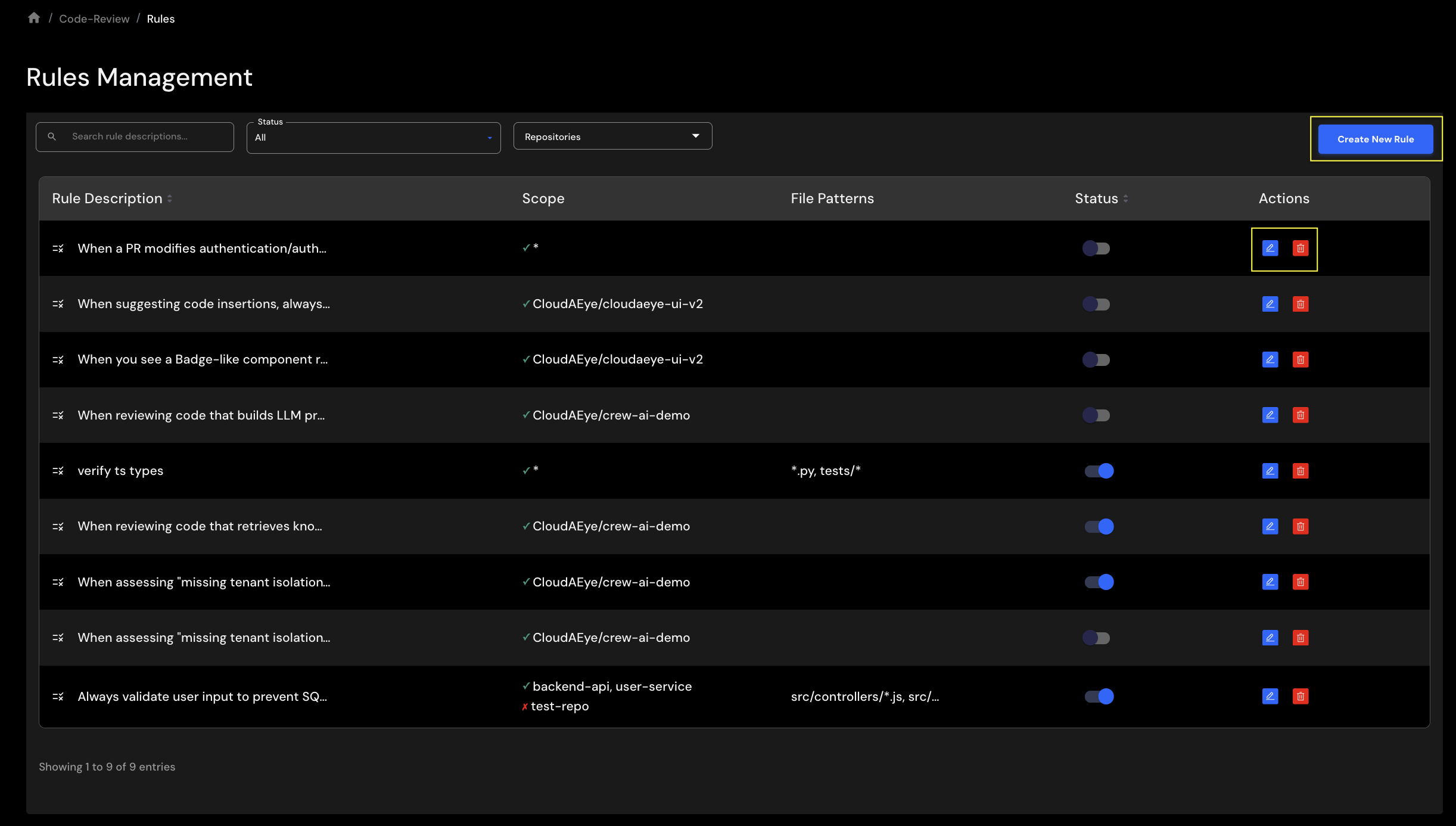
If you have not created any rules yet, the table will be empty.
Click on Create New Rule button on the top right cornor.
You will see a page that captures the rule definition.
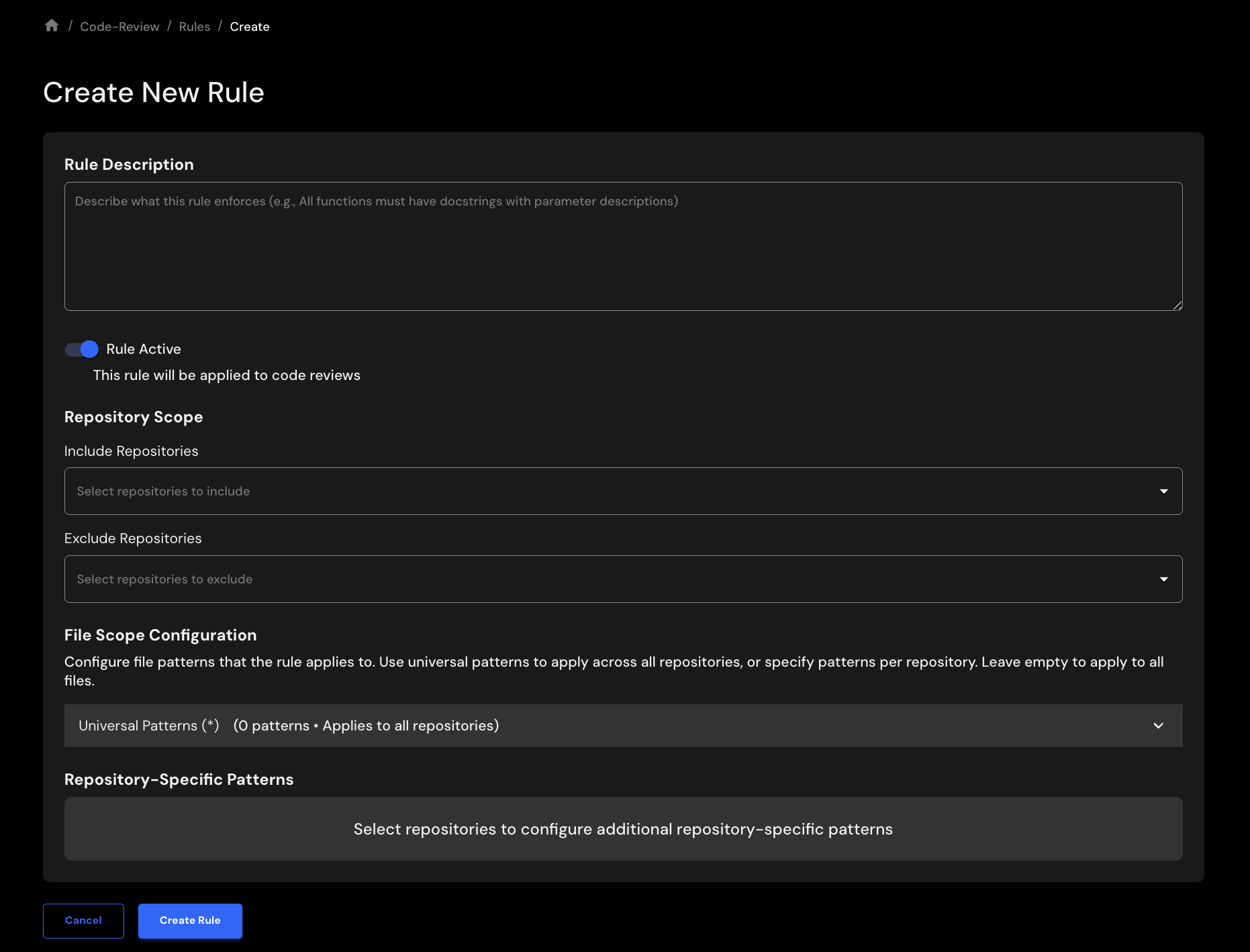
Enter the following details:
- Rule Description: Write your rule in natural language.
- Rule Active: Use this button to turn ON/OFF a rule.
- Repository Scope: Select the specific repositories where you want to apply this rule. You may select "*" to indicate all repositories.
- Exclude Repositories: Use this filter to exclude any repositories.
- File Scope Configuration: You may apply the rule to specific files or directories.
- Repository-Specific Patterns: You may limit the rule to specific subdirectories.
Click on the Create Rule button to create the rule.
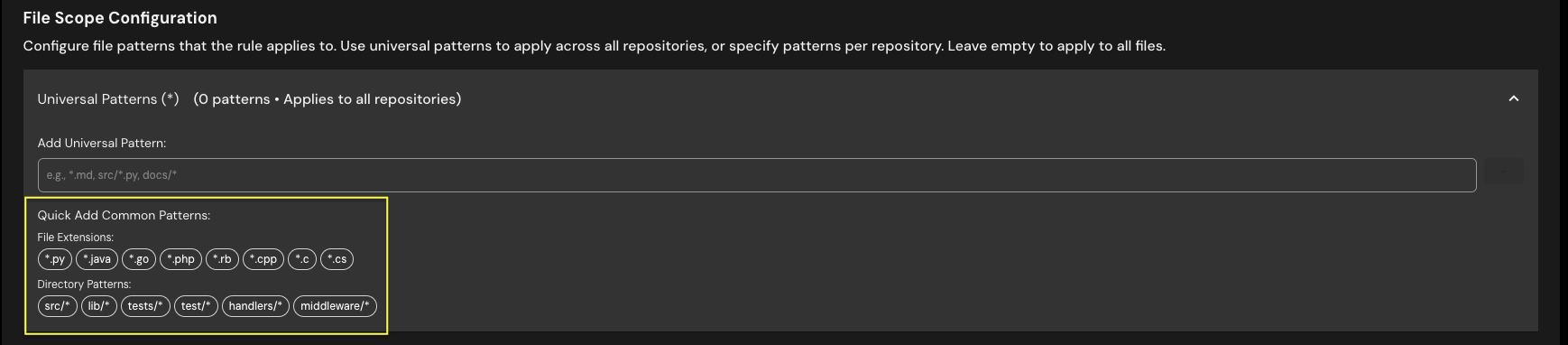
Examples of File Scope Configuration
The UI shows examples of file scope configuration. You may click on the patterns to select them or type in your own patterns.
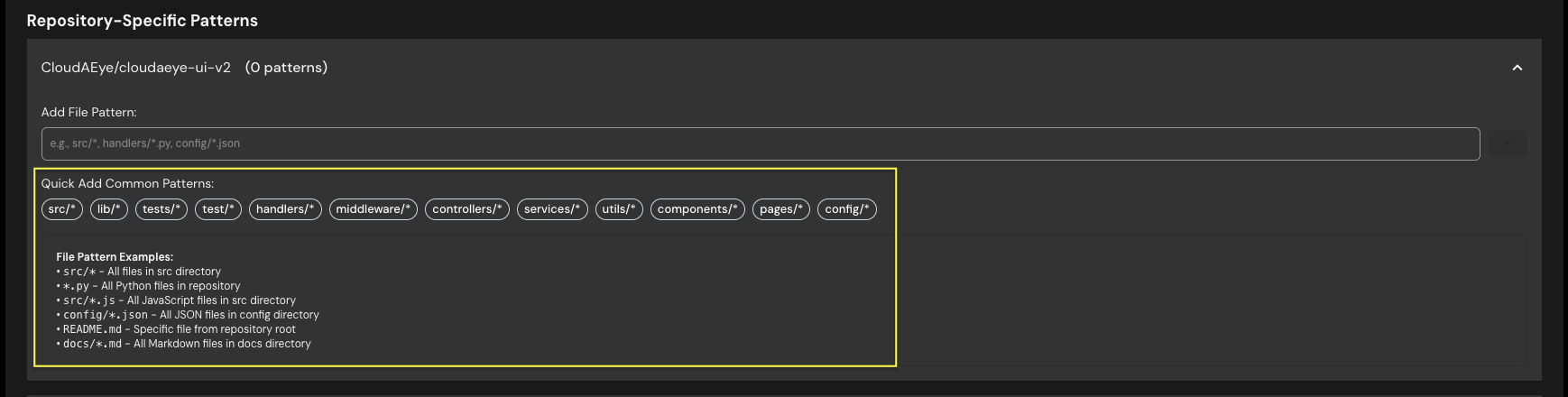
Examples of Repository-Specific Patterns
The UI shows examples patterns for repository-specific configuration.
Example Rules
The following examples show how rules can be written in natural language.
Security
- Prevent credential leaks: "Flag any hardcoded API keys, passwords, or secret tokens"
- SQL injection prevention: "Ensure all database queries use parameterized statements instead of string concatenation"
- Authentication enforcement: "Verify that all API endpoints check user authentication before processing requests"
- Input validation: "Check that all the payload inputs are validated before processing the request"
Code Quality
- Error handling: "All async functions must include try-catch blocks"
- Resource cleanup: "Ensure database connections and file handles are closed in finally blocks"
- Specific exception handling: "Flag bare except clauses that catch all exceptions without specificity"
- Intentional error suppression: "Ignore bare exceptions when used to skip part of the process and continue on unexpected errors"
Team Standards
- API logging: "All external API calls must include logging for request and response"
- Documentation: "All public functions must have JSDoc comments explaining parameters and return values"
Edit a Rule
To edit a rule, click on the pencil icon from the Rules page. The rule will open in edit mode.
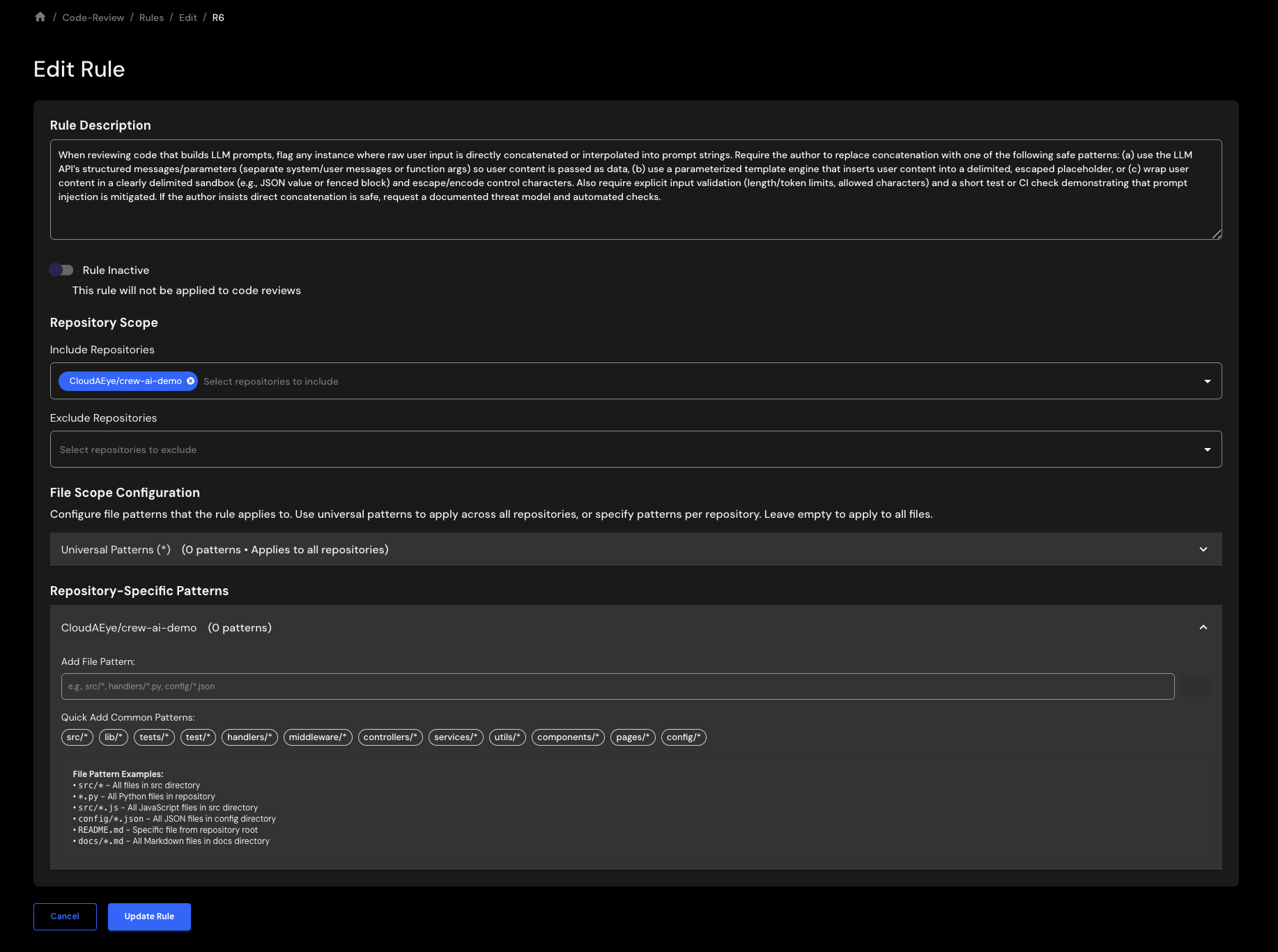
When you’re done making changes, click Update Rule to save them.
Delete a Rule
To delete a rule, click on the trash icon from the Rules page.
You will see a confirmation page.
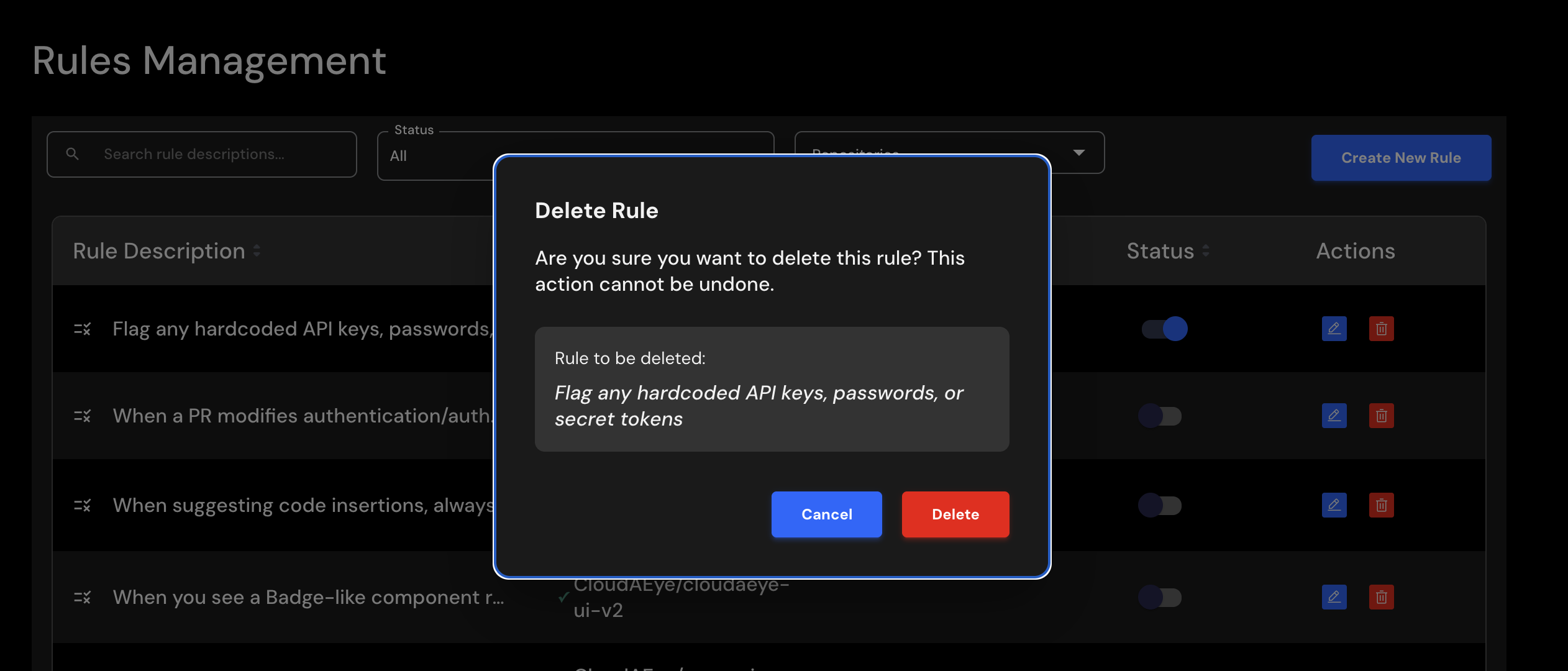
Click on the Delete Rule button to delete the rule.