Register with CloudAEye SaaS
Overview
CloudAEye supports email and password registration, OAuth registration, email verification, 2-step verification, and tenant-managed password policies.
Tenant administrators can invite other users and configure the authentication policy for the workspace.
Authentication settings are organized into these tabs under Settings:
| Tab | Purpose |
|---|---|
| Password Management | Change passwords and configure password strength and lifecycle |
| 2-Step Verification | Set up an authenticator app and enforce 2-step verification for password users |
| OAuth Config | Choose the sign-in methods allowed for the workspace |
| Single Sign On | Configure OIDC or SAML SSO and SCIM provisioning |
Registration flow
Create a new workspace
- Open the CloudAEye registration page.
-
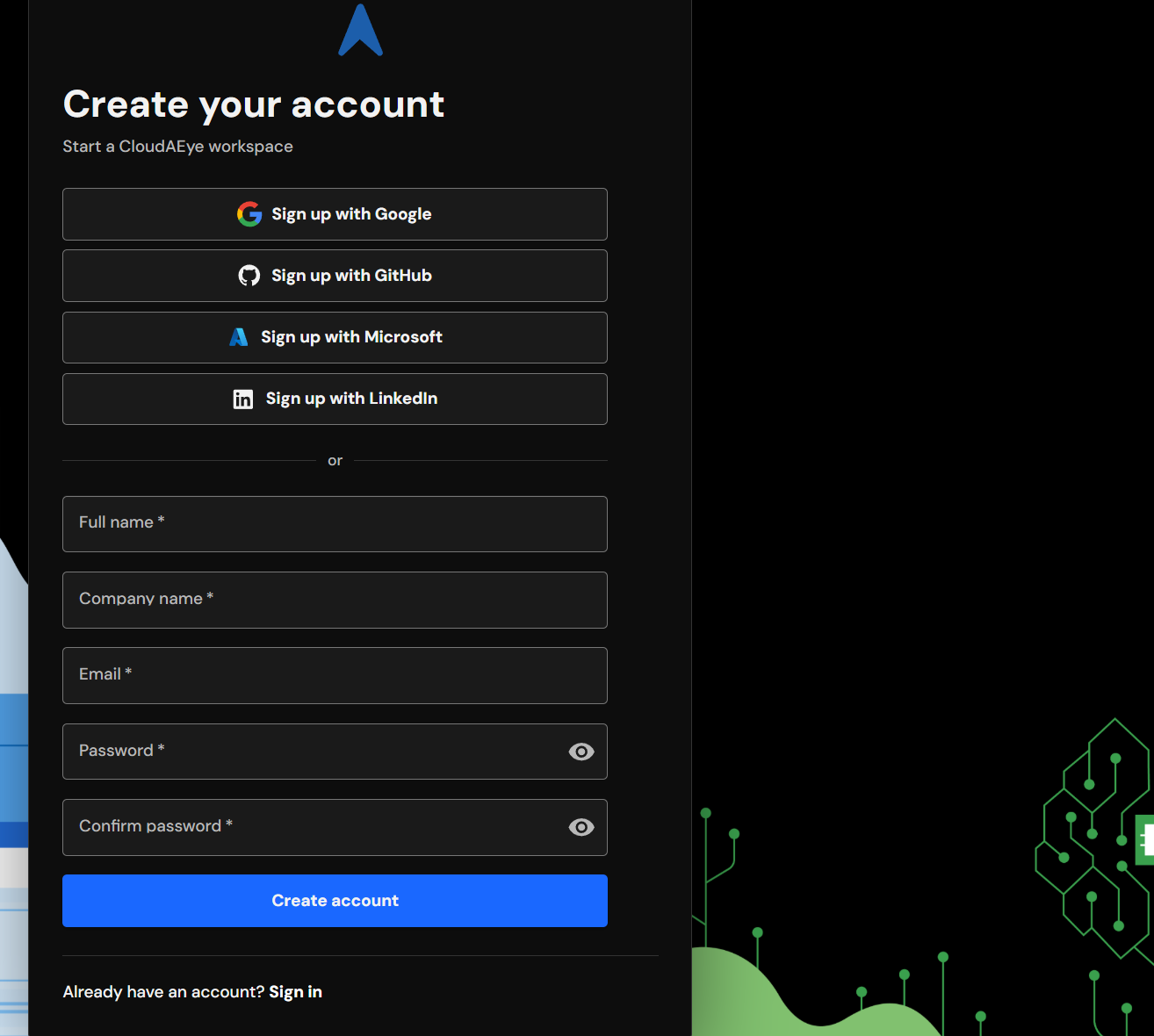
Register with an allowed OAuth provider or enter your full name, company name, email address, and password.
-
For email and password registration, open the verification email sent by CloudAEye and select Verify email.
-
Sign in with the configured credentials.
Join an existing workspace
- A tenant administrator sends an invitation to the user's email address.
- Open the invitation link and select Sign in or Create account.
- The page displays only the sign-in methods allowed by the tenant.
- If password registration is allowed, create a password that satisfies the tenant's password policy and verify the email address.
- Accept the invitation to join the workspace with the assigned roles.
OAuth
OAuth allows a user to register or sign in through an existing identity provider instead of creating a CloudAEye password. CloudAEye supports:
- GitHub
- Microsoft
Select Sign up with provider during registration or Sign in with provider during login. After authentication, the provider redirects the user back to CloudAEye.
A user joining through an invitation must use the same email address as the invitation.
OAuth users do not manage a CloudAEye password. Password strength, password expiration, and CloudAEye 2-step verification settings apply only to email and password accounts. The OAuth provider controls its own password and verification requirements.
Configure allowed OAuth methods
Tenant owners and administrators can control which OAuth methods members may use:
- Open Settings and select OAuth Config.
- Under Allowed sign-in methods, select or clear Google, GitHub,
Microsoft, and LinkedIn.
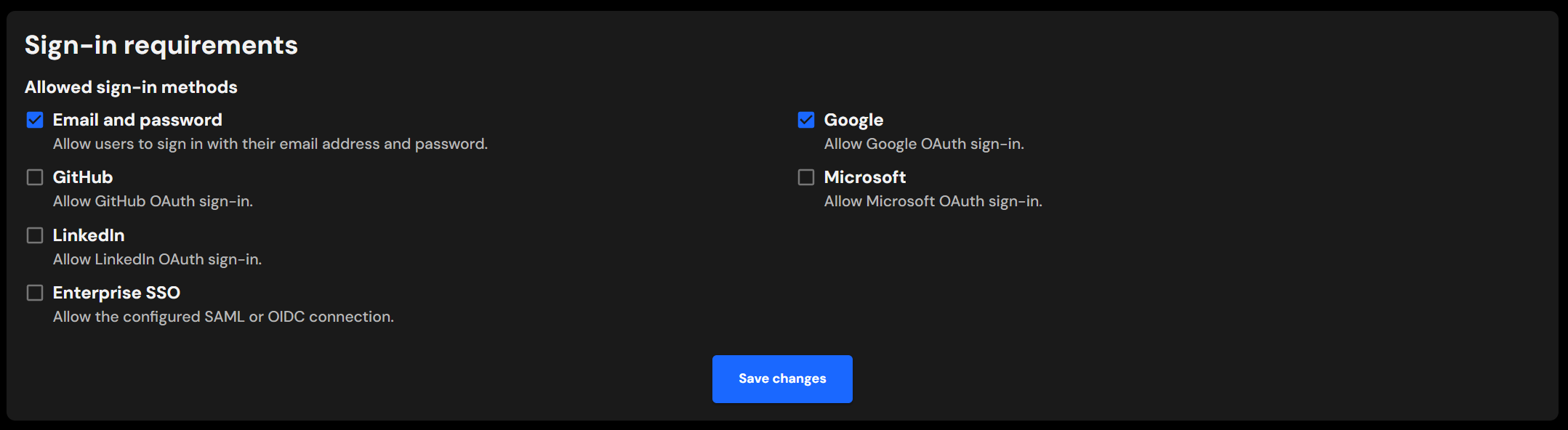
- Select Save changes and confirm the change.
At least one sign-in method must remain enabled. Changing the allowed methods signs out workspace members so that the new policy is enforced at their next login.
Tenant administrators control which configured providers their workspace permits.
Login and 2-Step Verification
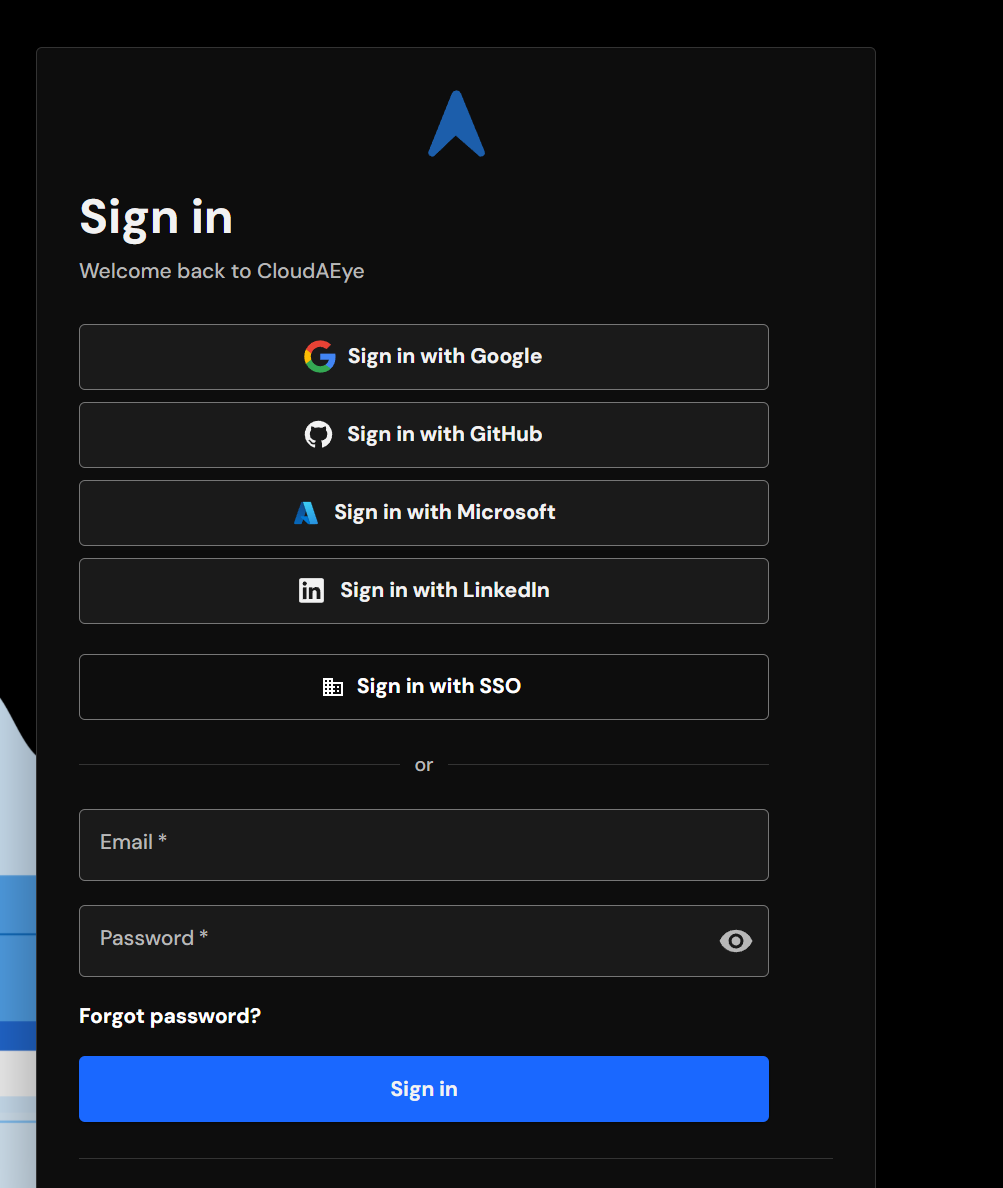
Open the CloudAEye sign-in page
and use one of the methods allowed by the tenant.
CloudAEye 2-step verification uses a time-based one-time password (TOTP):
- Open Settings and select 2-Step Verification.
- Enter the account password and select Set up 2-step verification.
- Scan the QR code with an authenticator application. Google Authenticator,
Microsoft Authenticator, Authy, 1Password, and Bitwarden are common options.
Any TOTP authenticator application will work. If scanning is
unavailable, enter the manual setup key.
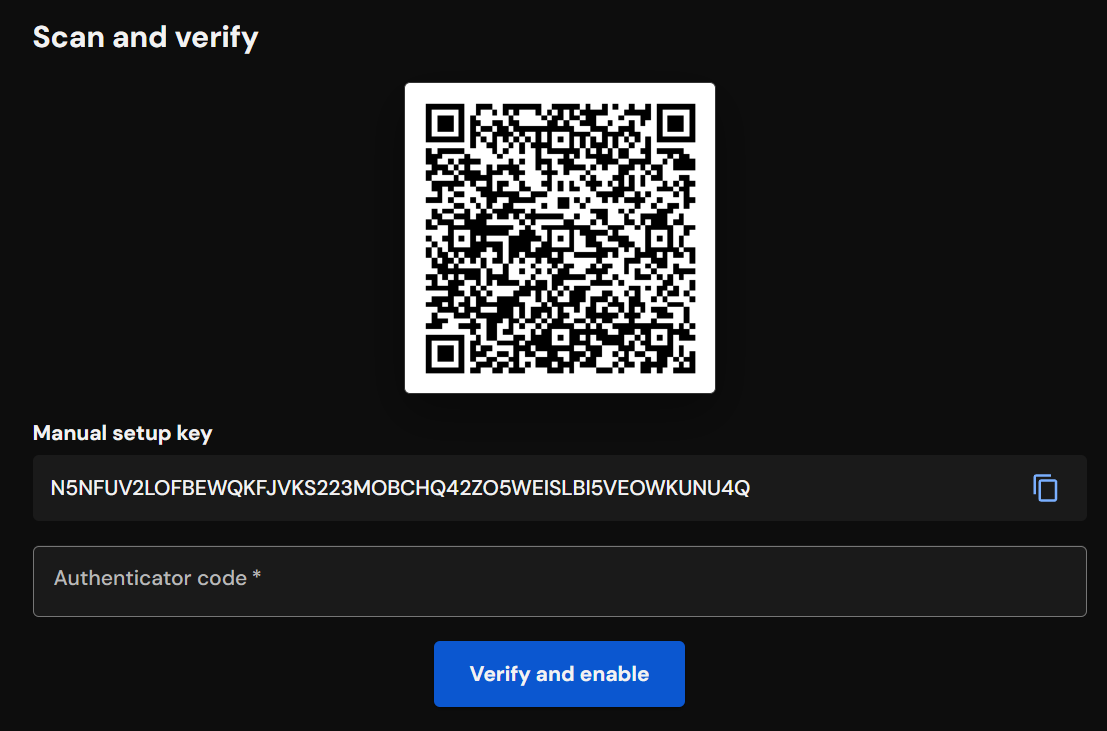
- Enter the six-digit authenticator code and select Verify and enable.
- Store the generated backup codes securely. Each backup code can be used when the authenticator application is unavailable.
The authenticator entry uses CloudAEye as its issuer.
Configure tenant-wide 2-step verification
Tenant owners and administrators can require 2-step verification for all email and password users:
- Open Settings and select 2-Step Verification.
- Enable Require 2-step verification under Workspace requirement.
- Select Save policy and confirm the change.
Enabling this setting signs out workspace members. At the next password login, users who have not configured 2-step verification must enroll before they can continue. While the setting is enabled, users cannot disable it from the 2-Step Verification tab.
Password lifecycle
Email and password accounts support the following lifecycle operations:
- Forgot password: The user requests a reset link from the sign-in page.
- Reset password: The user opens the time-limited email link and creates a password that satisfies the current tenant policy.
- Change password: The user opens Settings > Password Management, enters the current password, and creates a new password.
- Password reminder: CloudAEye notifies the user when the configured password age is reached.
- Required password change: CloudAEye blocks workspace access after the configured password age until the user changes the password.
Password reset and email verification links expire after one hour. A successful password reset revokes the user's existing sessions.
Configure password expiration
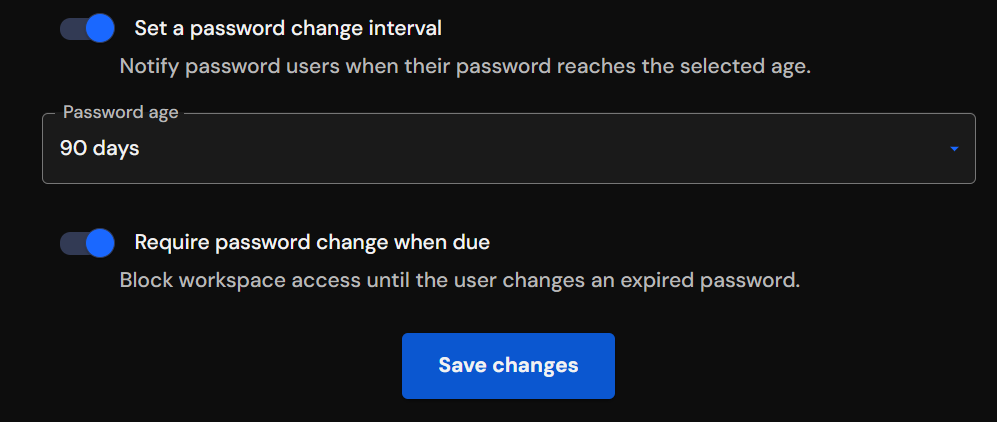
Tenant owners and administrators configure password age from Settings > Password Management:
- Enable Set a password change interval.
- Select a password age of 30, 60, 90, 180, or 365 days.
- To enforce expiration, enable Require password change when due.
- Select Save policy and confirm the change.
If only the interval is enabled, CloudAEye sends a non-blocking reminder. If Require password change when due is also enabled, the password expires at the selected age and the user must change it before accessing the workspace.
Password strength
A tenant password policy can define:
- Minimum length from 8 to 128 characters
- At least one uppercase letter
- At least one lowercase letter
- At least one special character
The registration, reset password, and change password pages show password requirements checklist.
Configure password length and complexity
Tenant owners and administrators can configure password strength:
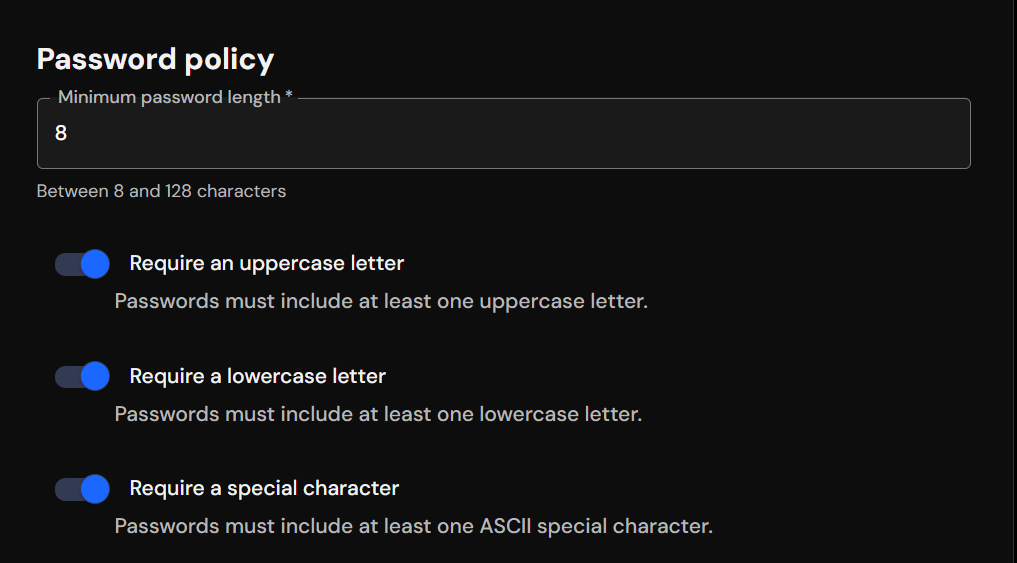
- Open Settings and select Password Management.
- Under Password policy, enter the Minimum password length.
- Enable or disable Require an uppercase letter.
- Enable or disable Require a lowercase letter.
- Enable or disable Require a special character.
- Select Save policy.
The updated policy applies to new passwords. Existing passwords are not changed immediately; users must satisfy the policy the next time they register, reset, or change a password.