yamllint
This guide explains how to run yamllint with CloudAEye.
Overview
yamllint is a linter and validator for YAML files that helps ensure correct syntax, proper formatting, and adherence to best practices. It detects syntax errors, indentation issues, duplicate keys, and stylistic inconsistencies, making YAML files more readable, maintainable, and error-free.
Why Use yamllint?
- Syntax validation: Quickly identify invalid YAML that could break parsing or deployments.
- Style enforcement: Ensure consistent indentation, spacing, and formatting across your YAML files.
- Customizable rules: Configure which rules to enforce or ignore via a
.yamllintconfiguration file. - Integration-friendly: Works from the command line, within CI/CD pipelines, and can be integrated into editors for real-time feedback.
- Error prevention: Helps prevent subtle issues in configurations for Kubernetes, Ansible, CI/CD pipelines, or other YAML-driven tools.
yamllint is ideal for teams and developers who want to maintain clean, consistent, and reliable YAML configurations while catching errors before they cause runtime issues.
Prerequisites
Step 1: Register
Sign up with CloudAEye SaaS.
Step 2: Setup Code Review
Setup Code Review by following the Getting Started guide.
Step 3: Configure the Linter
Configure the desired linter.
Configuration
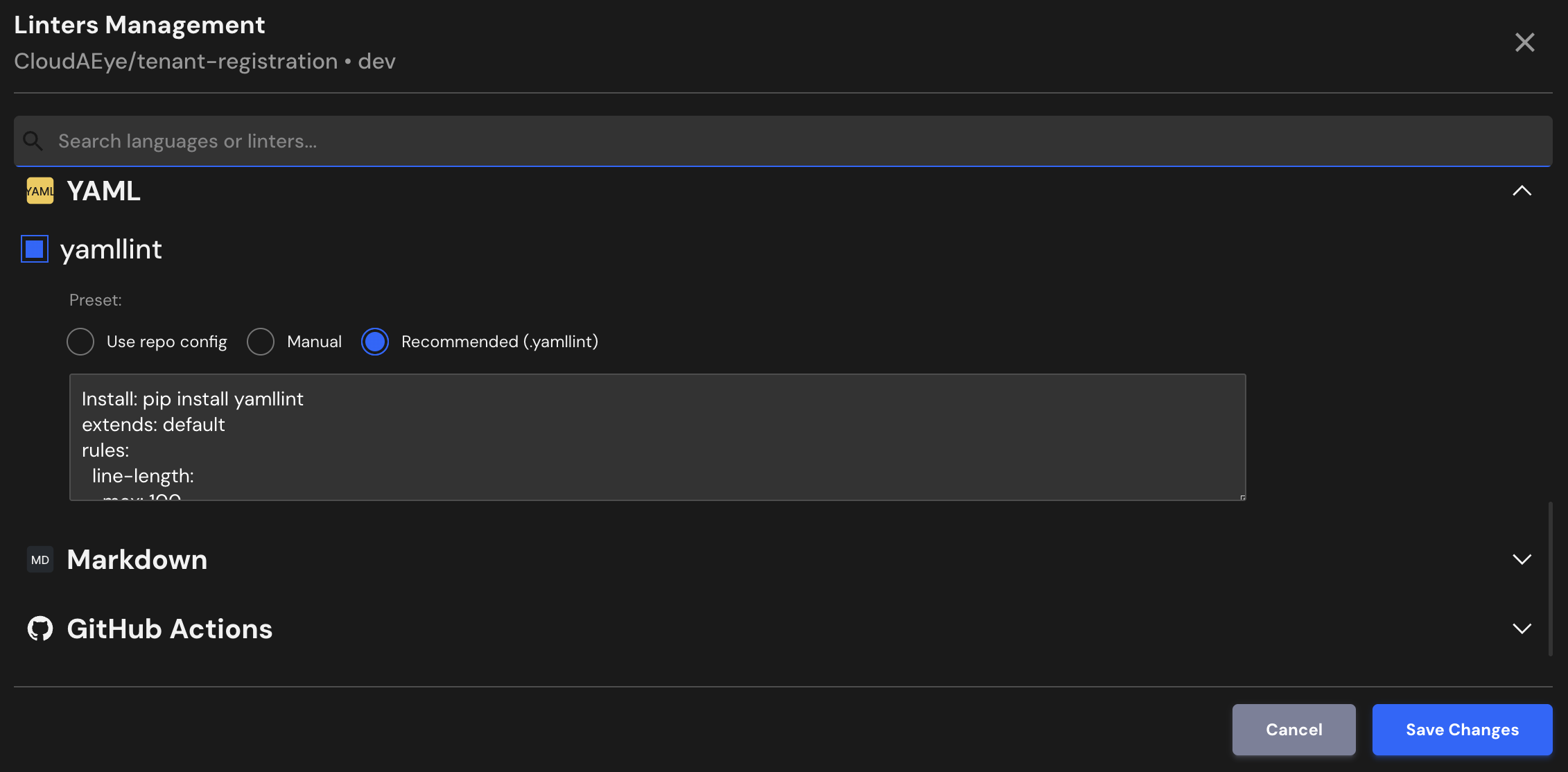
CloudAEye supports a recommended configuration for yamllint.
If your repository already has yamllint configured, CloudAEye will automatically use that setup. You may also enter your desired configuration.
Use repo config
CloudAEye automatically reads your repository’s existing yamllint configuration and uses it as is. No additional setup is needed.
Common yamllint Configuration File Locations & Formats
yamllint configuration is typically defined in a configuration file named .yamllint, which can be placed in the project root or a user’s home directory. The configuration can also be specified via command-line options.
** 1. Configuration file (.yamllint or .yamllint.yaml) **
Allows you to specify rules, severity levels, indentation, line length, and patterns to ignore.
Example structure:
extends: default
rules:
  line-length:
    max: 120
    level: warning
  indentation:
    spaces: 2
  trailing-spaces:
    level: error
** 2. Command-line options **
Override configuration for a specific run:
yamllint -d "{extends: default, rules: {line-length: {max: 100}}}" myfile.yaml
Manual
You may enter the yamllint configuration you would like to use.
Recommended (cli flags/comments)
Install: pip install yamllint
extends: default
rules:
  line-length:
    max: 100
    level: warning
  truthy:
    allowed-values: ['true','false','yes','no','on','off']
ignore: |
  node_modules/
  dist/
  build/
File Extensions
yamllint will run on files that use any of the following extensions:
.yaml, .yml
References
- yamllint project
- yamllint documentation