Daily Standup Reports
Overview
Most of a standup is people reading out what their tools already know. CodeCortex writes each team's daily standup from its repository and Jira activity, so the meeting can focus on what is stuck.
For each member, the report summarizes their priorities, the progress they made, and the problems in their way, with the tickets, pull requests, and commits behind them. Blocked items, pull requests waiting for review, and carryover risk are counted at the top.
You can generate a standup for any completed working day, run it on a schedule, and publish it to Confluence.
Try the Live Demo
See a daily standup report built from sample data.
Set Up a Team
Standups are generated per team.
Prerequisites
Step 1: Connect Jira and Your Code Host
Connect Jira, and connect GitHub, GitLab, or Bitbucket. Standups use Jira issue activity and GitHub, GitLab, or Bitbucket pull requests, reviews, and commits.
Step 2: Create a Team
Create a team, and link each member's Jira and code host accounts.
Generate a Standup
Step 1: Open the Team's Standups
Select Teams in the CodeCortex sidebar, open your team, and select the Daily Standup tab. The list shows recent working days (Monday to Friday), newest first:
| Column | Description |
|---|---|
| Date | The working day the standup covers. |
| Status | Not generated, or Generated. |
Select Load more to show older days.
Step 2: Generate or View
- Select Generate to create the standup for a day. Progress is shown in the row: Queued, Syncing repositories, Generating summary, then Completed.
- Select View to open a standup that has already been generated.
Standups are available for each completed working day.
Step 3: Refresh the Report (Optional)
On the report page, select Refresh to regenerate the report from the latest activity, for example after late commits or Jira updates.
What's in the Report
The screenshots in this section are from the live demo, which uses sample data.
Summary
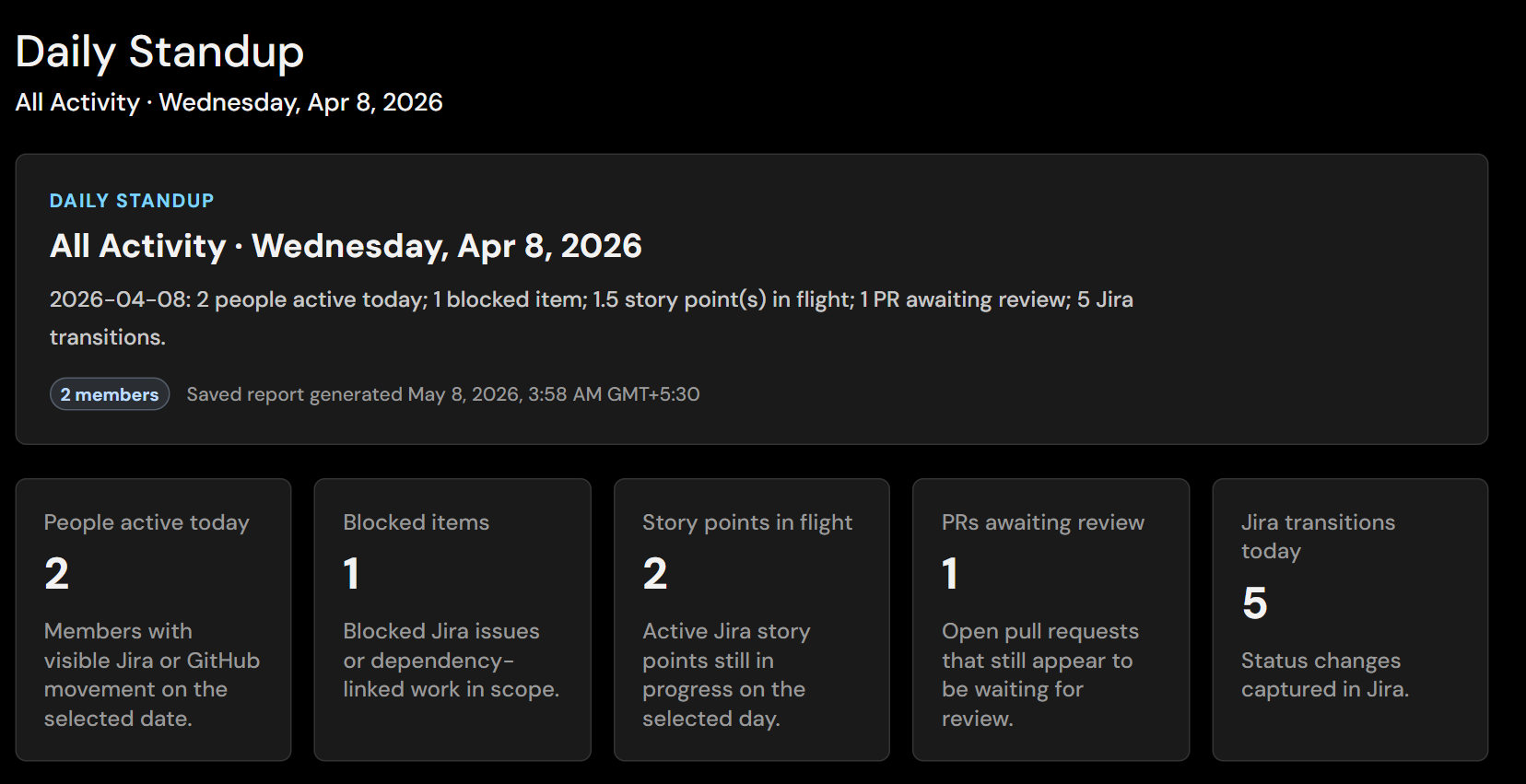
The report opens with a summary of the team's day, the number of members it covers, and when the report was generated. Below it, five cards count what needs attention. In this example, two people were active, one item is blocked, and one pull request is waiting for review: the three things to raise first in the standup.
Summary Cards
| Card | Definition | Better when | How to read it |
|---|---|---|---|
| People active today | Members with visible Jira or code activity on the selected date: a Jira change, a commit, a pull request opened, merged, or closed, a review, or a pull request comment. | Close to the team size | A low count can mean people were on leave, in meetings, or working on something not tracked in Jira or Git. Ask, rather than assume. |
| Blocked items | Open Jira issues that are blocked or dependency-linked at the end of the day. | Lower; zero is the goal | Every blocked item is a discussion topic. Start the standup with these. |
| Story points in flight | Story points of the team's Jira issues still in progress on the selected day. | Steady, and in line with capacity | A growing number day after day means the team is starting work faster than it finishes it. |
| PRs awaiting review | Open pull requests with a requested reviewer who has not responded yet. | Lower | Ask the named reviewers for a time today. Waiting pull requests block their authors. |
| Jira transitions today | Status changes that team members made in Jira on the selected day. | Steady | Very few transitions for several days means work is stuck, or the board isn't being kept up to date. |
Charts
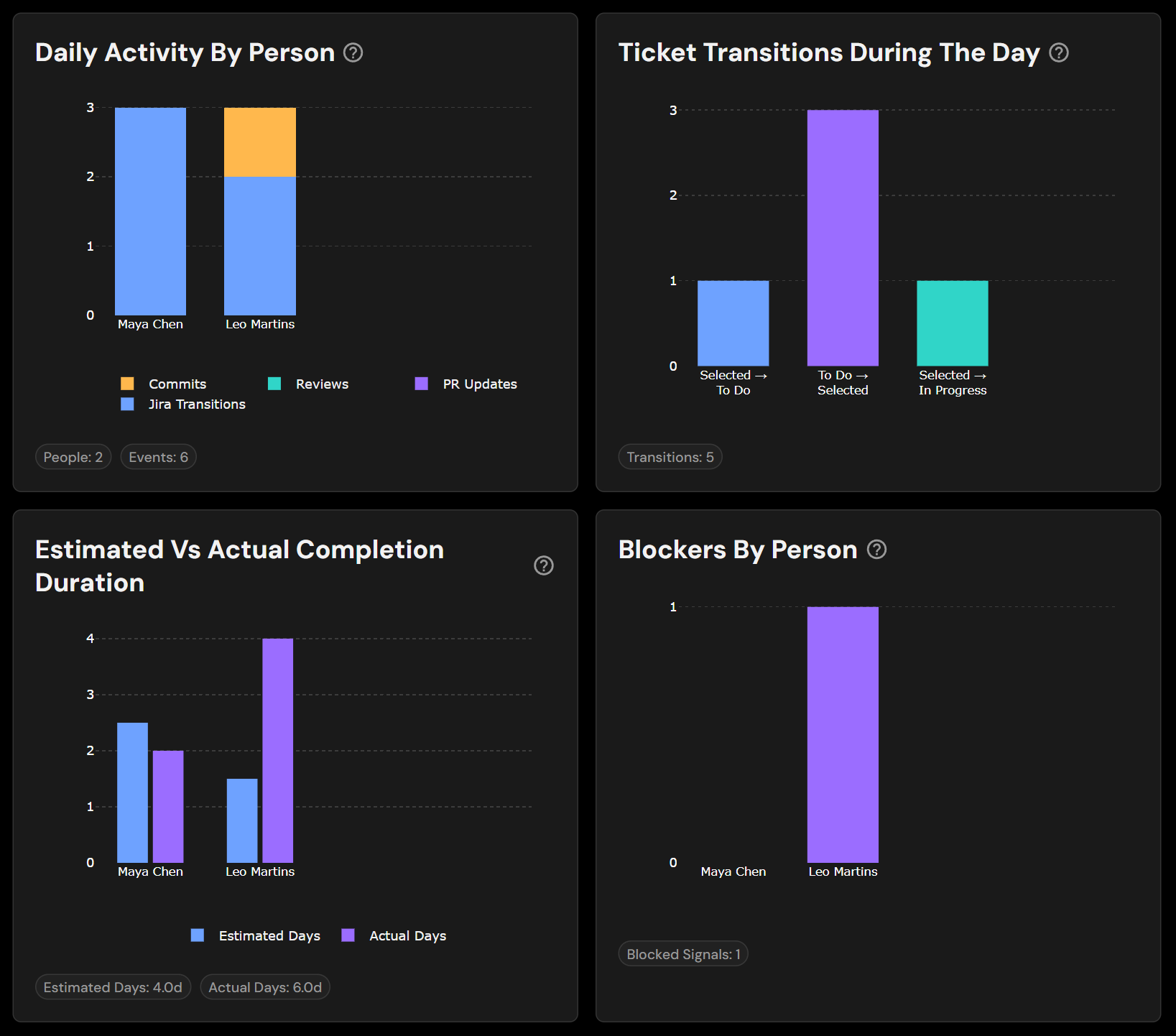
The charts show who did what during the day, how issues moved between statuses, how long finished issues took compared with their estimates, and who is blocked. In this example, the issues finished that day took 6 days against an estimate of 4.
| Chart | What it shows |
|---|---|
| Daily Activity By Person | Each member's Jira transitions, pull request updates, reviews, and commits. |
| Ticket Transitions During The Day | How many issues moved between each pair of statuses, for example To Do -> In Progress. |
| Estimated Vs Actual Completion Duration | For issues finished that day, the estimate in story points compared with the days from first active work to done. |
| Blockers By Person | Blocked signals for each member. |
Member Updates
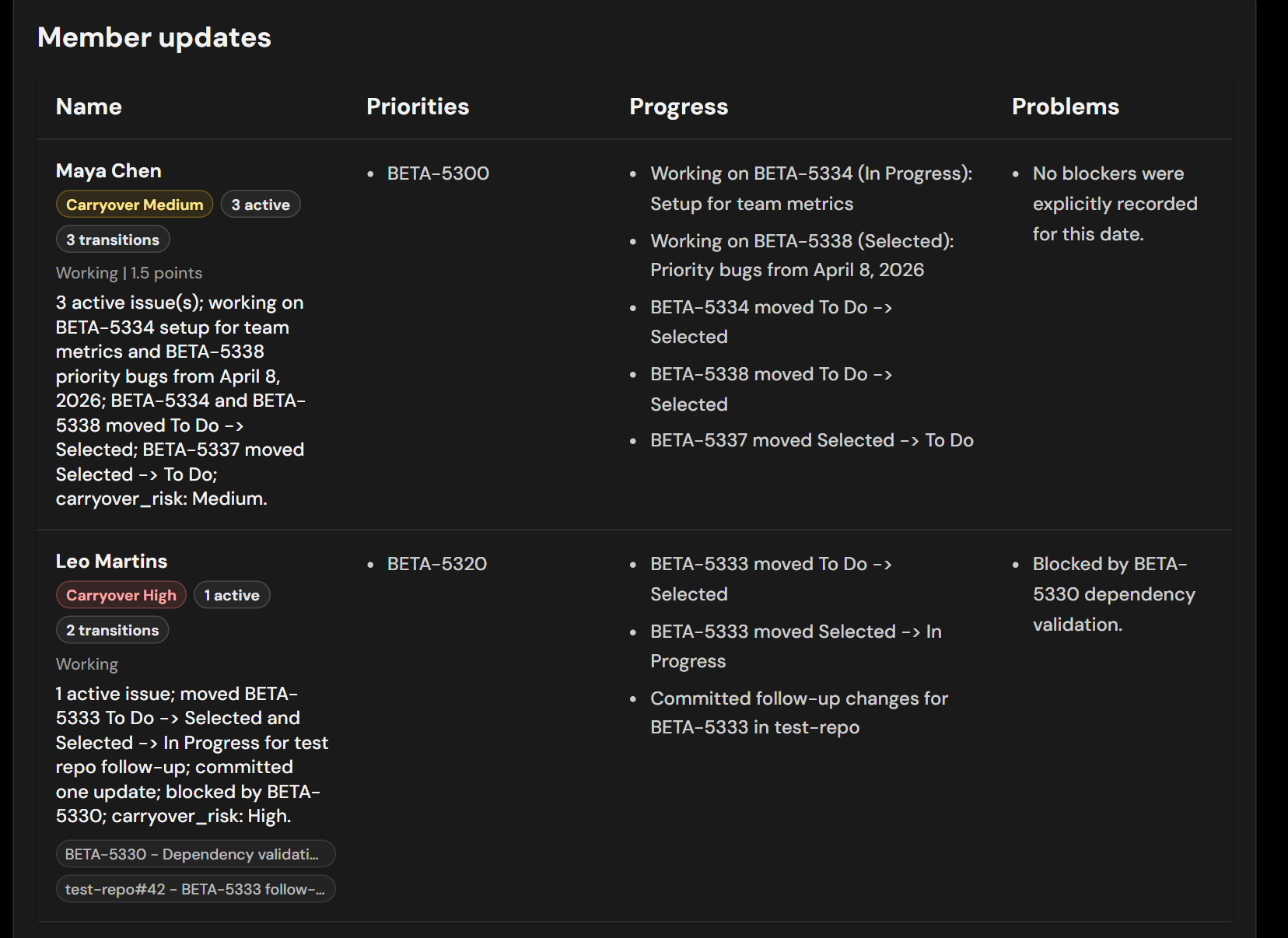
The Member updates table replaces the round of status updates. In this example:
- Maya Chen has Medium carryover risk and three active issues. Her Progress lists the issues she worked on and moved, and she has no blockers.
- Leo Martins has High carryover risk. His Problems column shows he is blocked by another issue, BETA-5330, and the chips under his name link to the blocking issue and his pull request waiting for review. This is the item to discuss in the standup.
The table has one row per member:
| Column | What it contains |
|---|---|
| Name | The member, their carryover risk, active issue count, transition count, status, story points in flight, and a short summary of their day. |
| Priorities | Jira issues assigned to the member that are in progress at the end of the day. If the team has a board, only issues in the active sprint are listed. |
| Progress | What moved that day: issues worked on, status changes, pull requests opened, merged, or reviewed, comments, and commits. |
| Problems | Issues the member is blocked on, and pull requests waiting on a review. |
Each member gets one status, the first that applies: Blocked, Working, Reviewing, Waiting For Review, or Quiet.
Carryover risk shows how long the member's in-progress work has stayed active:
| Risk | Meaning |
|---|---|
| High | Work has stayed active for 3 or more days. |
| Medium | Work has stayed active since at least the previous day. |
| Low | Active work looks recently started and is not lingering yet. |
Unattributed Repository Activity
Commits from authors who are not mapped to a team member are listed under Unattributed repository activity. If you see a team member here, link their account on the team's Members tab.
Jira Evidence Coverage
When a report includes a Jira evidence coverage note, it lists Jira information worth checking for the day.
Use the Report in Your Standup
The report replaces the round of "what I did yesterday" updates. The team reads it before the meeting, so the standup can focus on what is stuck.
Before the Standup
- Schedule the report to run before the meeting, for example at 09:00 for a 09:30 standup. See Schedule Daily Standups.
- Share it where the team reads. Publish it to Confluence, or share the link in the team's channel.
- Each member skims their own row and corrects anything missing, such as work outside Jira or Git, in the meeting.
A 10-Minute Standup Agenda
- Blockers first (3 minutes): Go through Blocked items and each member's Problems column. Agree who will unblock each one.
- Waiting reviews (2 minutes): For each pull request in PRs awaiting review, the named reviewer commits to a time.
- Carryover risk (3 minutes): For members with High carryover risk, ask whether the work needs to be split, paired on, or re-scoped.
- Anything not in the report (2 minutes): Give people a moment for work outside Jira and Git, such as design discussions or customer calls.
After the Standup
- If someone appears under Unattributed repository activity, link their account so they show up tomorrow.
- If a member's work is consistently missing, check that their repositories are added to the team.
Customize the Report
| What you can change | How |
|---|---|
| Who is in the report | Add or remove members on the team's Members tab. See Teams. |
| Whose work is credited | Link each member's GitHub, GitLab, and Jira accounts. |
| Which code counts | Add or remove the team's repositories. |
| Which issues count as priorities | Add the team's Jira board on the Sprints tab, so Priorities shows only issues in the active sprint. |
| When it runs | Set the weekdays, run time, and timezone. Set a default for all teams, or a schedule for one team. See Schedule Daily Standups. |
| Whether it is published, and where | Turn on Publish to Confluence, and choose the parent page and title prefix. See Publish to Confluence. |
| Which day it covers | Generate any completed working day from the team's Daily Standup tab. |
| How fresh it is | Select Refresh to regenerate the report from the latest activity. |
To add notes to a report, edit the published page in Confluence.
Schedule Daily Standups
Scheduled standups are generated automatically for the previous working day. A run on Monday covers Friday.
Set the Default Schedule for All Teams
- Select Settings in the CodeCortex sidebar, then the Daily Standup tab.
- Turn on Scheduled standups.
- Under Runs on, choose the weekdays to run (Monday to Friday).
- Set the Run time and the IANA timezone, for example
America/New_YorkorAsia/Kolkata. - Optionally, turn on Publish to Confluence, and choose the Confluence parent page URL and a Title prefix.
- Select Save schedule.
Every team without its own schedule uses this default, including teams created later.
Give a Team Its Own Schedule
- Open the team, select the Daily Standup tab, then select Settings.
- Under Schedule, change the settings, then select Save schedule. The team now has a Team override.
To go back to the default, select Use global settings.
Run a Schedule Now
To generate the standup immediately, open the team's schedule and select Run now. The schedule status shows the Next run, and the result of the Last run, with links to the report and the Confluence page.
Notes:
- Tenant admins set schedules. Everyone can see the schedule, select Run now, and view reports.
Publish to Confluence
You can publish a standup as a Confluence page, either manually or automatically after each scheduled run.
Choose a Destination
A tenant admin chooses the Confluence parent page under which reports are created:
- For every team: Settings > Daily Standup > Confluence parent page URL.
- For one team: Open the team, select Settings, and under Confluence destination select Choose page or paste the Confluence parent page URL. Then select Save destination.
The destination is also used for the team's sprint reviews. Confluence must be connected first: open Integrations in the CodeCortex sidebar and connect Confluence.
Publish a Report
On the report page, select Publish to Confluence. When it finishes, select Open in Confluence.
- The page title is
{team} {title prefix} {date}. Without a title prefix, it is{team} Daily Standup {date}. - The page includes the summary, the summary metrics, the member updates table, unattributed activity, and the charts as images.
- Publishing the same standup again updates the existing page.
Troubleshooting
| Problem | What to do |
|---|---|
| A member shows No progress recorded. | Check that their accounts are linked on the team's Members tab, and that their repositories are added to the team. |
| A team member appears in Unattributed repository activity. | Link the account they commit with on the team's Members tab, then select Refresh. |
| Publish to Confluence is disabled. | Ask a tenant admin to choose a Confluence destination. |
| Waiting for another standup job for this team to finish | Another standup for this team is running. Wait for it to finish. |